My WD external hard drive has been used for years, and now I’m worried it may be failing. It has important photos and personal files on it, and I need help figuring out the chances of data recovery and the safest way to recover files from an old WD external hard drive without making things worse.
I’ve had a few WD My Passport drives go sideways, and yeah, it sucks fast. Most of mine were fine for years, so I never treated them like ticking bombs. Then one starts hanging, files vanish, or Windows throws RAW at you, and your stomach drops.
First thing I’d do, stop using the drive now. If files were deleted, or the disk started behaving odd, every extra write raises the odds of overwriting data. If the hardware is starting to fail, leaving it mounted and busy is a bad bet too.
Check the drive before you do anything dumb
Right-click Start, open Disk Management, and look for the Passport there.
If it shows up with the correct capacity, even if Windows labels it RAW or Unallocated, I’d still treat it as a decent DIY case. If it does not appear at all, or you hear clicking, grinding, or spin-up noises looping over and over, I’d stop there. That leans hardware, not software. A recovery lab is the safer path.
What I’d use first
If the system still detects the drive, I’d start with Disk Drill. I tried a pile of recovery tools over time, and this one gave me the least grief on WD externals.
Part of why I kept going back to it, it reads the file systems you usually see on these drives, NTFS, FAT32, and exFAT. So you’re not fighting the software before you even begin.
One thing I learned the hard way. If the Passport is slow, freezes Explorer, or disconnects mid-read, make an image first. Inside Disk Drill, use the byte-to-byte backup option. Scan the image after, not the drive itself. Long scans on a weak disk are rough on it. Imaging first cuts down the wear and gives you more than one shot if the drive gets worse later.
Other stuff people try
If you deleted a few files and the drive still works fine otherwise, Recuva is worth a quick pass. It looks old. It feels old too. Still, for a simple delete mistake, I’ve seen it pull files back without much fuss.
If you know your way around partition problems, TestDisk is one of those tools people keep around for a reason. It’s free, ugly, and strong. I’d use it for a lost partition or an uninitialized disk where the partition table got messed up. Still, I would not poke around in it blindly. One wrong choice and you get a bigger mess.
The WD My Passport catch people miss
Don’t pull the drive out of the enclosure unless you know exactly what model you’re dealing with. A lot of My Passport units use hardware encryption on the USB board. So when people remove the disk and hook it up another way, Windows sees nonsense, RAW space, or an empty volume. I saw a guy do this thinking the case was the problem, and he turned a bad day into a worse one. If the USB port is damaged, board repair by a shop makes more sense than bypassing the enclosure.
If you set a password with WD Security, you need it. No cute trick around it. No recovery app is going to step over AES-256 hardware encryption and hand your files back. The drive has to be unlocked first with WD’s tool or the data stays unreadable.
After you recover what matters
Once your files are safe again, set up some kind of backup. I’m not picky about the method. WD points people toward Acronis these days, fine. But even a second external drive, OneDrive, or Google Drive is better than doing nothing and repeating the same panic next month.
18 Likes
Yes, data recovery from an old WD external drive is often possible. The odds depend on one thing first, what kind of failure you have.
If the drive powers on, shows the right size, and does not make clicking or grinding sounds, your chances are decent. Logical damage, deleted files, RAW volume, broken file system, these cases are often recoverable. If it clicks, drops off USB, or never mounts, the odds drop and the safe move is a lab.
I agree with @mikeappsreviewer on stopping use right away. I disagree a bit on trying multiple tools early. On an aging WD, too many scans is how people turn a weak drive into a dead one.
What I’d do:
- Try a different USB cable and a different port first. WD cables fail more than people think.
- Check SMART with CrystalDiskInfo if the drive stays connected. Reallocated sectors, pending sectors, and read errors are bad signs.
- If SMART looks rough, clone it first with something built for failing disks, like ddrescue. That is safer than scanning the original drive over and over.
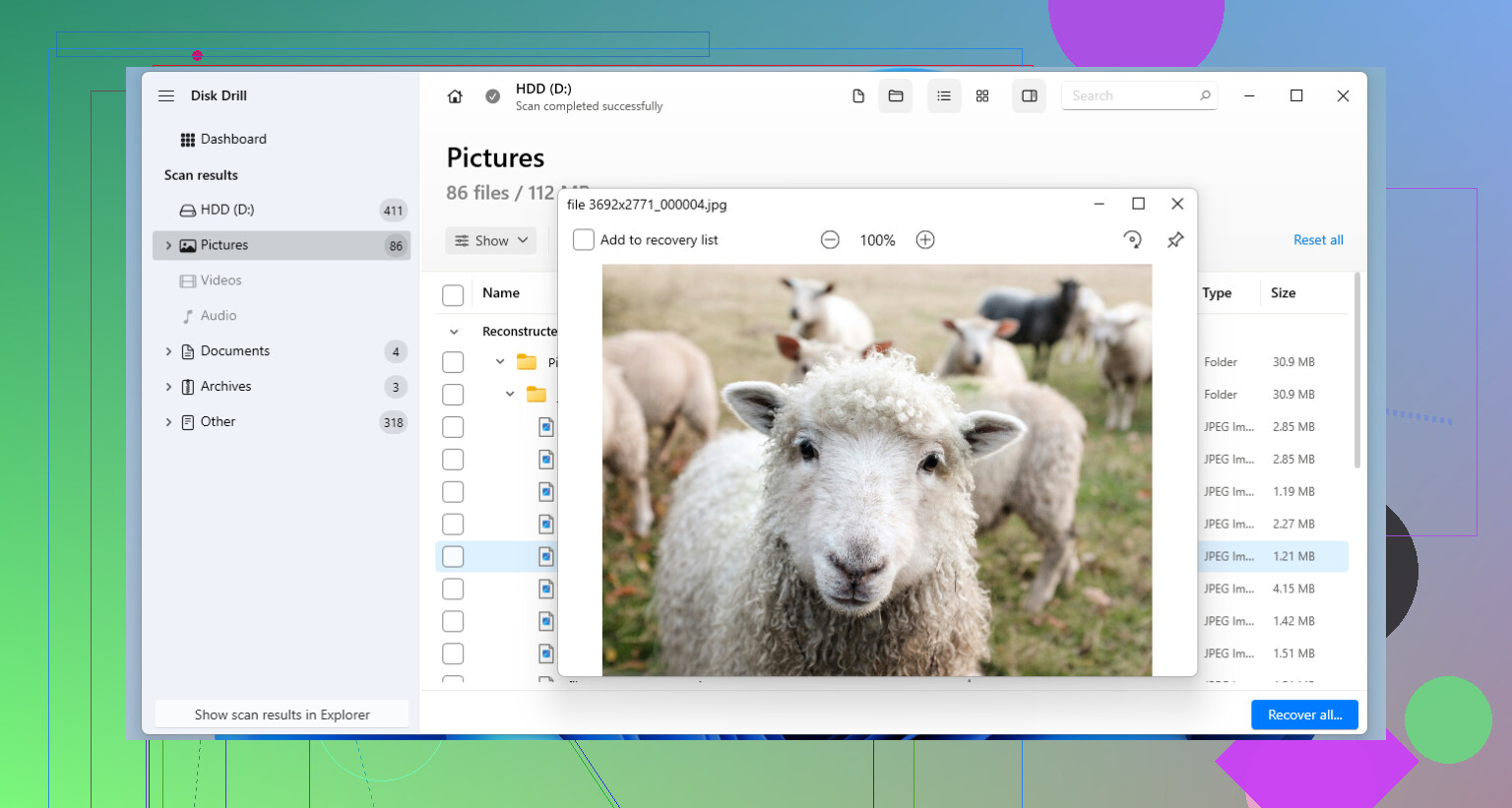
- After you have a clone or image, scan the copy with Disk Drill. It’s easier to work with than most recovery apps, and it does a good job sorting photos and common personal file types.
- Recover files to a different drive. Never back onto the WD itself. People still do this, and yep, it goes bad fast.
One more WD-specific thing. Some old WD externals have flaky power through USB alone. A powered USB hub sometimes keeps the drive stable long enough to image it. Not always, but I’ve seen it help.
If you want a quick walkthrough, watch how Disk Drill recovers files from an external hard drive.
Short version, if it is detected, there’s hope. If it is noisy or vanishes mid-read, stop messing with it and go pro. That choice saves data more often than people wana admit.
If the WD drive is still showing up at all, you probly have a shot. Not a guarantee, but not hopeless either.
I mostly agree with @mikeappsreviewer and @cacadordeestrelas, but I’d push one extra point harder: age alone matters. Old external drives can look “fine” right up until they suddenly aren’t. So if this drive is mounting, even slowly, I would treat this like a last-chance copy session, not a casual troubleshooting project.
A few signs that recovery odds are still decent:
- drive appears in Disk Management
- correct capacity shows
- no clicking or repeated spin-up/spin-down
- folders load, even if very slowly
- only some files are missing/corrupt
Signs I would stop DIY stuff:
- clicking, beeping, grinding
- disconnects every few minutes
- freezes the whole PC when plugged in
- smells hot or won’t spin properly
One small thing I disagree on with a lot of forum advice: I would not start by “testing fixes” like chkdsk, first aid, repair volume, etc. People do that because it feels productive. Sometimes it just makes a damaged file system worse. Recovery first, repairs later.
If the drive stays connected long enough, recover the most important files first. Photos, docs, irreplaceable stuff. After that, if you want a cleaner pass, Disk Drill is a solid option for scanning and pulling data off to another drive. It’s especially useful if the WD external hard drive is showing RAW, missing folders, or deleted files. Just don’t recover anything back onto the same WD.
Also, if you’re trying to sort out tools, this easy guide to the best data recovery software options is worth a look.
One WD-specific gotcha people forget: some old enclosures fail before the actual disk does. So the problem might be USB bridge electronics, not the platters themselves. That does not mean “open it now,” just that the symptons can be misleading.
Short version: yes, recovery is often possible, but the safer move depends on whether it’s logical damage or physical failure. If it’s quiet and detected, DIY recovery with Disk Drill is reasonable. If it’s noisy or unstable, stop before you turn “maybe recoverable” into “expensive lesson.”
I’d add one angle the replies from @cacadordeestrelas, @suenodelbosque, and @mikeappsreviewer only touched lightly: test the enclosure behavior, not just the disk behavior.
Old WD externals often fail in annoying half-ways. The drive may be okay, but the USB bridge overheats, drops power, or starts throwing read errors that look like disk damage. If the LED flickers oddly, the drive keeps reconnecting with the Windows device sound, or transfer speed falls off a cliff after a minute, that can point to the enclosure electronics, not instant platter death.
One thing I slightly disagree on: I would not spend too long reading SMART on a flaky USB enclosure because some WD bridges report garbage or hide useful attributes anyway. Helpful if it works, but not something I’d trust as the deciding factor.
My approach would be:
- copy a few small important files first
- then a few large ones
- watch whether failures happen randomly or only under sustained reads
That pattern tells you a lot.
As for Disk Drill, pros: easy preview, good for photos/docs, decent interface, can work from an image. Cons: not the cheapest, and on a truly unstable drive, any full scan can still be too stressful unless you image first.
So yes, recovery is often possible. But if this WD is unstable under load, think “salvage window” rather than “repair project.”