My iPhone is running out of storage after years of photos, videos, apps, and iOS updates. I’m trying to figure out if there’s any real way to increase iPhone storage or if I should use iCloud, external storage, offload apps, or upgrade to a new phone. What worked for you?
You can’t really upgrade the storage chip inside an iPhone in any normal, safe way. Some repair places may claim they can swap or solder storage parts, but that’s risky, and if the phone gets bricked, Apple is not going to treat it like a normal repair issue.
What you can do is squeeze a lot more usable space out of the phone you already have. On a 64GB iPhone, the difference between “barely usable” and “fine for now” usually comes down to cleaning out the stuff iOS doesn’t make obvious.
Start with the storage screen
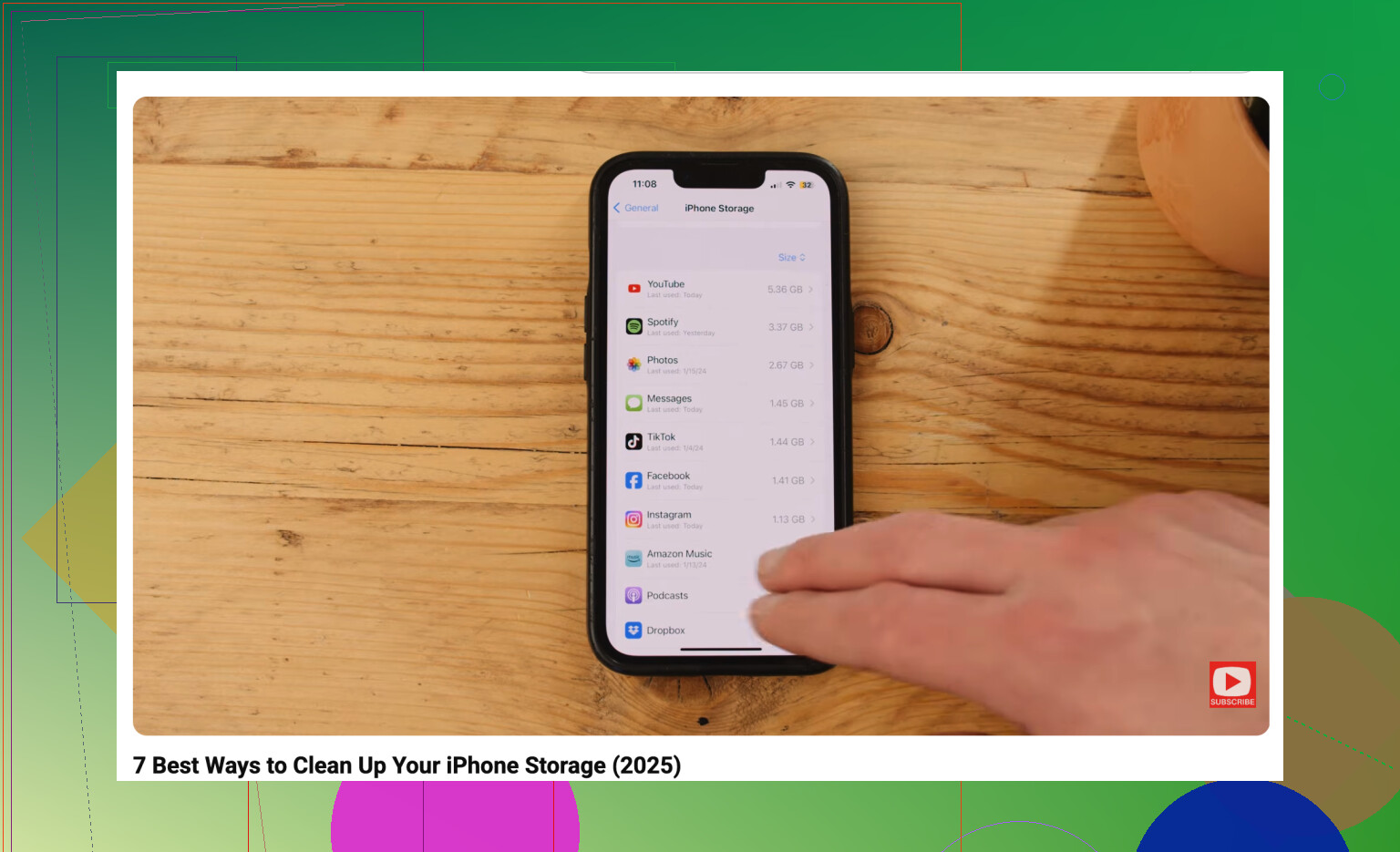
Go to Settings > General > iPhone Storage and look at the storage bar. Most of the time, Photos, Messages, apps, and System Data are the big offenders.
Photos are usually the easiest win. Apple does have a Duplicates folder, but it’s pretty limited. It catches exact duplicates, not the ten almost-identical photos you took because one of them might be better.
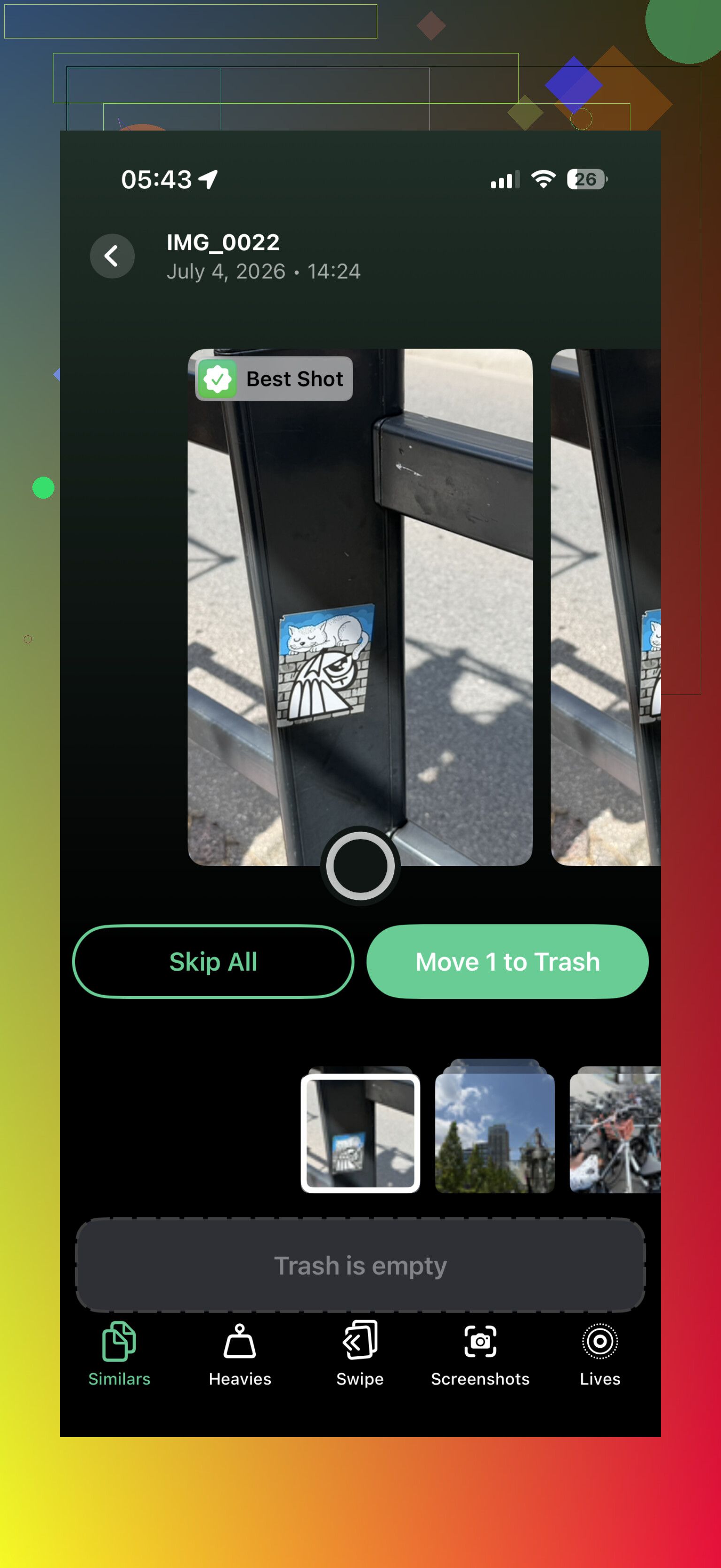
That’s where a cleaner app can actually help. I’ve had the best luck with Clever Cleaner. A lot of these apps pretend to be free, then make you pay as soon as you try to delete anything useful. Clever Cleaner is actually free, doesn’t have ads, and the developers have kept it free for early users.
The useful part is the “Similars” section. It groups near-duplicate shots, suggests the best one, and lets you remove the extras without going photo by photo. The “Heavies” section is also worth checking because it sorts large videos by size. A couple of forgotten 4K clips can take up several gigabytes by themselves.
Turn on Optimize iPhone Storage
If you use iCloud Photos, go to Settings > Photos and make sure “Optimize iPhone Storage” is turned on. Your phone keeps smaller local versions of your photos, while the full-size originals stay in iCloud.
When you open a photo, the high-res version downloads when needed. It’s not magic storage, and the free iCloud plan is only 5GB, but it can still help a lot. For older files, Google Drive is also an option since the free tier gives you 15GB.
Offload apps instead of deleting them
For apps you barely use, like airline, hotel, or event apps, use Offload Unused Apps instead of deleting everything. It removes the app but keeps its documents and data. Later, you tap the icon, it downloads again, and your stuff is still there.
It’s a low-effort way to free up space without having to log back into everything from scratch.
Don’t ignore Messages and Safari
- Messages can quietly eat a ton of storage. Old videos, GIFs, stickers, memes, and random attachments pile up over years. You can set messages to auto-delete after 30 days or 1 year if you don’t need to keep every thread forever.
- Safari can also hold onto a surprising amount of cached data. Go to Settings > Safari > Clear History and Website Data. It may not always be huge, but if you haven’t cleared it in a long time, it’s worth doing.
External storage can help for video
If your main problem is filming long videos, TikToks, or other heavy media, an external drive might make sense. Depending on your iPhone model, you can use a Lightning or USB-C flash drive. Some setups even let you record straight to the drive through certain camera apps, so the footage doesn’t fill the phone first.
If you’re a heavy user on a 64GB iPhone, storage management is always going to be annoying. And if your phone is sitting at 99% full all the time, that can cause slowdowns, crashes, and update problems. iPhones need some free space to handle background tasks and system updates, usually around 10% to 20% free is a safer place to be.
Still, before spending $800 or more on a new phone, do a serious cleanup first. Clear similar photos and huge videos with Clever Cleaner, offload apps you don’t use much, turn on iCloud photo optimization, and clean up Messages. You may find a lot more usable space than you expected.
8 Likes
If your goal is to keep everything long-term, don’t treat iCloud Photos as a separate storage box. With iCloud Photos on, deleting a picture from the phone usually deletes it from iCloud too, because it’s sync, not a backup. Mike’s cleanup advice is fine for making the phone usable again, but I’d export anything important first to a computer, external SSD, Google Photos, OneDrive, or whatever you trust, then start deleting. The real “storage upgrade” is either buying a higher-capacity iPhone next time or moving old media out of the phone’s active library. For now, archive the big videos/photos somewhere else, confirm they open there, then remove them from the iPhone. That’s less convenient than magic extra storage, but it avoids the classic “I freed space and accidentally deleted my only copy” problem.
Do not start deleting from the Photos app while assuming “it’s in the cloud somewhere.” That is the mistake that hurts people. Make sure you have a real second copy first, preferably somewhere you can browse the files outside the iPhone.
The short answer is no, you can’t increase the built-in iPhone storage in any normal way. A 64GB iPhone stays a 64GB iPhone. External drives, iCloud, Google Photos, computers, and cleaner apps can help you manage the mess, but they don’t turn the internal storage into a bigger chip.
The thing people mix up is “storage extension” vs “storage relocation.” iCloud Photos with Optimize iPhone Storage is more like letting Apple keep the originals and your phone keep lighter local versions. That can work well, but it still depends on your iCloud plan, internet access, and Apple’s sync behavior. It is convenient, but it is not the same as dumping old photos into a separate hard drive and forgetting about them.
If you want the safest boring method, I’d do it like this:
- Plug the phone into a Mac, PC, or external drive setup.
- Copy the old photos and videos off the phone.
- Open a few of the copied files and make sure they actually work.
- Only then delete them from the iPhone.
- Empty Recently Deleted, because otherwise you may not get the space back right away.
That last part gets missed a lot. People delete 40GB of videos, then wonder why storage barely changed. iOS keeps deleted photos around for a while unless you clear Recently Deleted manually.
External storage is useful, but mostly for moving media around. It is not going to make apps install there or make iOS updates use it like internal storage. Same with a USB-C flash drive on newer iPhones. Handy for dumping large videos, less handy if your problem is 30GB of app data, Messages attachments, and system junk.
I’d be a little cautious with cleaner apps too. They can be useful for finding similar shots and huge videos, and something like Clever Cleaner may save time if your camera roll is thousands of repeated photos. But don’t let any app bulk-delete blindly. Review what it marks, especially screenshots, documents, receipts, and videos that only look “similar” at a glance.
For apps, offloading is a decent temporary fix, but it is temporary. If an app’s documents are the big part, offloading may not free as much as you expect. Social apps can also rebuild cache quickly. Sometimes the real fix is deleting the app completely and reinstalling it, assuming you know your login and the app stores your data online.
My practical take would be:
If you need space today, delete large videos, clear Recently Deleted, offload unused apps, and clean Messages attachments.
If you want less daily annoyance, use iCloud Photos with Optimize iPhone Storage or another cloud photo service.
If you want long-term safety, archive old media to a computer or external SSD and keep a backup of that too.
If you want the problem to mostly go away, buy more storage on the next iPhone.
The annoying truth is that a low-storage iPhone can be kept alive, but it becomes a chore. Once you are constantly deleting things just to take photos or install updates, you’re managing storage instead of using the phone. That’s usually the point where cloud optimization or a bigger-capacity replacement starts making more sense than another round of cleanup.