My iPhone storage is almost full, and I noticed a lot of space is being used by downloaded music and videos. I want to remove the downloaded media to free up storage, but I’m worried it might delete songs, albums, or playlists from my actual Apple Music or media library. I need help understanding what gets removed and how to do it safely without losing anything important.
I spent way too long staring at the iPhone storage bar before I figured out why 'Media' felt fake. I’d delete photos, remove a couple apps, check storage again, and the number barely changed. What tripped me up was simple. Apple splits Photos and Media into separate piles, so you end up fixing one mess while the other one sits there untouched.
What Apple puts in 'Media'
Your own pictures and videos live under Photos. Media is the other pile. It usually includes downloaded songs from Apple Music or Spotify, offline movies and shows in the TV app, saved podcast episodes, voice memos, custom ringtones, plus cached stuff like album art and thumbnails from streaming apps.
On iOS 17 and newer, there’s also Synced Media. This one got me. Anything moved over from a Mac or PC through Finder or old iTunes lands there. Old MP3s, random home videos, some file you copied years ago and forgot. iPhone Storage shows it like one big lump, with no clean way to inspect what is inside from Apple’s own storage screen.
Deleting downloads does not erase your library
Yeah, this part matters. If you remove a downloaded track from Music, or delete an offline show from TV, you are removing the file stored on the phone. You are not wiping it from your account. It still stays in your library for streaming or for another download later. Same thing with podcast downloads and audiobooks. So if your goal is free space, this is low risk.
Why the built-in storage view is annoying
Settings > General > iPhone Storage looks useful at first. Then you start tapping around and it turns into busywork. Music, Podcasts, TV, Spotify, Netflix, one by one. Some apps show detail, some don’t. A lot of the time you get one total number and no clue which file is eating space.
I ran into this more than once. You see a 20 GB Media chunk and think it must be one huge video. Then it turns out to be a pile of offline stuff spread across multiple apps. Apple’s view does not help much with sorting it out.
Also, there’s no proper size sorting across your whole library. You can’t tell the phone, show me the biggest files first. So you poke around, delete a thing, check storage, repeat. Kinda dumb tbh.
What worked better for me
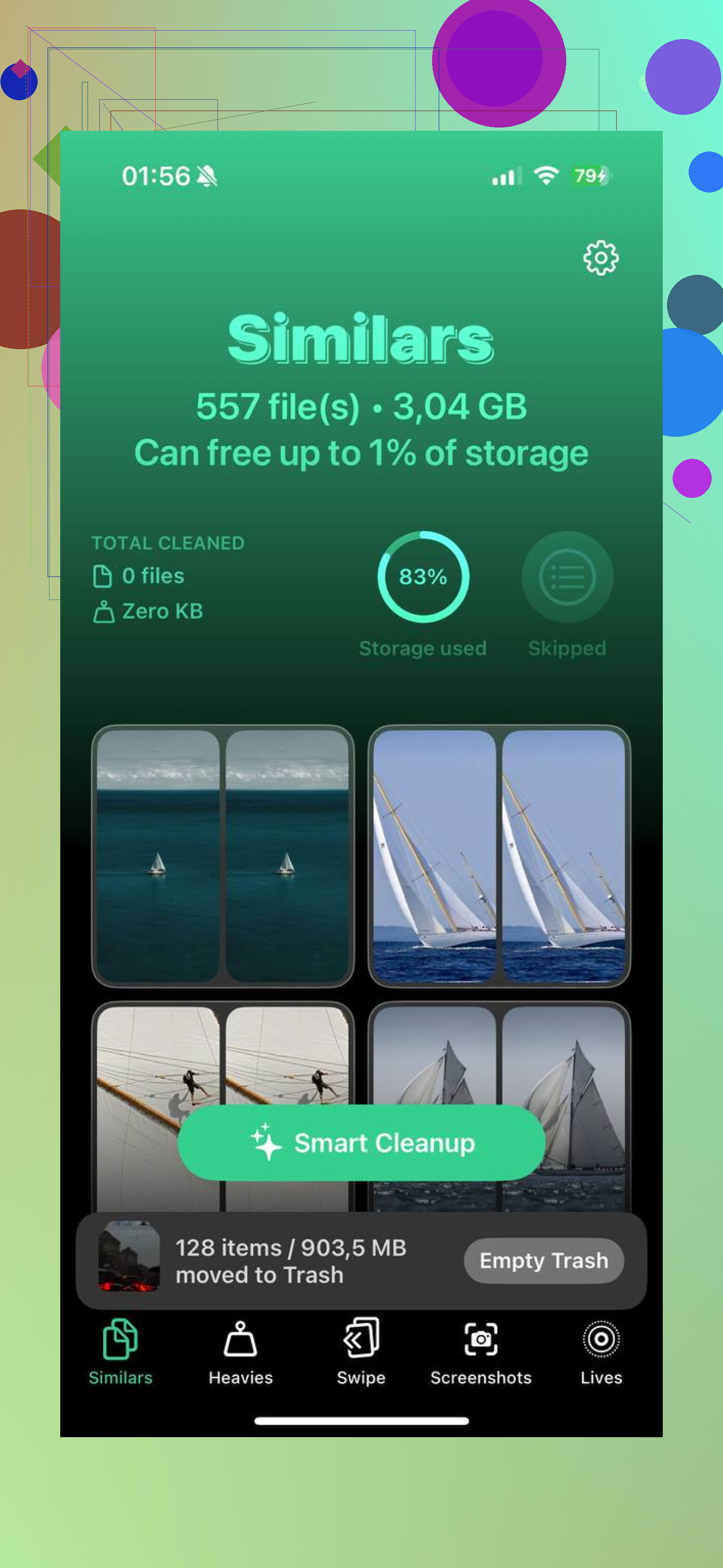
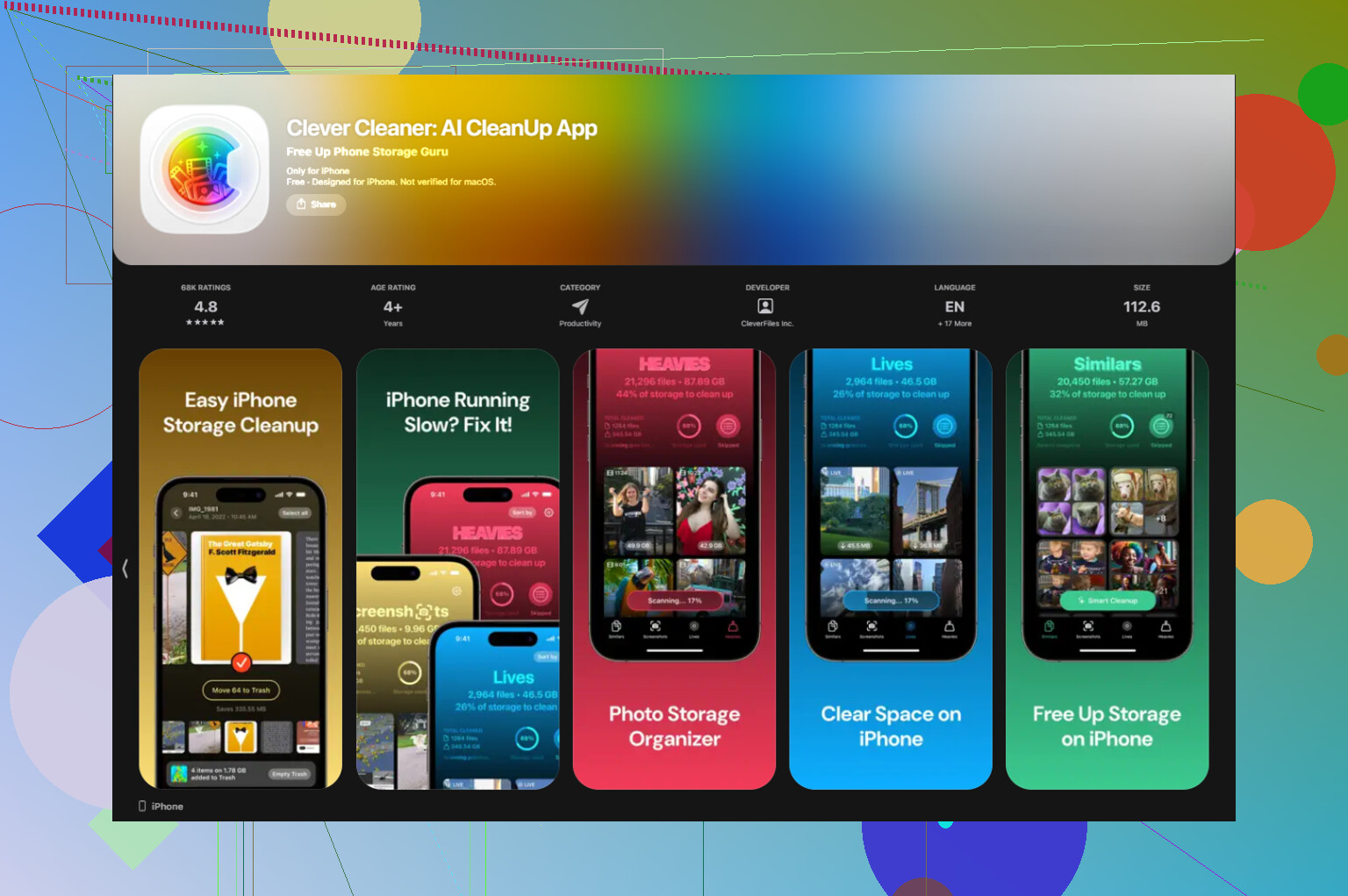
After doing the manual cleanup loop too many times, I ended up using Clever Cleaner. I didn’t expect much. Most apps in this category feel like traps, ads everywhere, then a paywall when you try to clean anything useful. This one felt different. No ads, no subscription wall popping up, no weird lockouts when I tested it.
The part I kept using was the Heavies tab. It lays out your library from the biggest file down to the smallest one, with file sizes shown clearly. So instead of guessing, you see the stuff doing the damage right away. In my case it was a mix of old 4K clips, a movie download I forgot about after a trip, and a few large saved files sitting there for no reason.
The Similars tab tackles a separate mess. If your photo library is full of repeat shots, bursts, or ten almost-matching photos from one moment, it groups those together. You keep the one you want, dump the extras, move on. I had more junk there than I thought. Like, way more.
One thing I did care about was privacy. The app processes data on the phone itself. Nothing from your library gets uploaded somewhere else for scanning. If you’ve got private screenshots, family videos, or work stuff mixed in, that matters.
Fast stuff to check first
- Open YouTube, Netflix, and Spotify. Look for offline downloads you don’t need anymore.
- Go to Settings > Messages > Keep Messages and switch it to 30 Days or 1 Year, so old video attachments stop piling up forever.
- Use the Heavies tab in Clever Cleaner and start with the biggest files first. Those move the storage bar fastest.
After you clean anything out, open Recently Deleted in Photos and remove everything there too. iPhone keeps those files around for 30 days, and they still count against storage until you empty them. I missed this step the first time and thought the cleanup didn’t work. It did. The trash was still full, lol.
28 Likes
Yes. Removing downloaded media from your iPhone does not remove the item from your library in most cases. It removes the local file.
A few examples:
Music app, tap Remove Download. The song stays in your Apple Music library.
TV app, delete the downloaded episode or movie. Your purchase or library entry stays.
Podcasts, deleting a downloaded episode does not remove the show from Following.
Spotify and Netflix work the same way for offline content. Your saved stuff stays tied to your account.
Where people get burned is synced media. If you added MP3s or videos from a Mac or PC through Finder or old iTunes, deleting those from the phone often means re-syncing later if you want them back. @mikeappsreviewer touched on this, and I agree with that part more than the storage graph part, which I think is less useful than people expect.
Fast path:
- Open each media app and remove downloads there.
- Check Settings, General, iPhone Storage, then tap Music, TV, Podcasts.
- If Music is huge, swipe left on artists or albums in the Music section to delete downloaded files fast.
- Restart the phone after cleanup. Storage totals lag sometiems.
If you want a cleaner view of large files, Clever Cleaner helps spot what is eating space. For a third-party breakdown, see independent Clever Cleaner review for iPhone storage cleanup.
Short version, delete the downloads, keep your library. Check synced media twice.
Yep. In most cases, deleting downloaded media only removes the offline copy from your iPhone, not the actual item from your library or account.
Where I slightly disagree with @mikeappsreviewer and @stellacadente is this: I would not rely too much on the big “Media” category in storage, because it can be weirdly vague. Better to think app by app.
What usually stays safe:
- Apple Music songs removed with “Remove Download”
- TV app movie/show downloads
- Spotify, Netflix, YouTube offline downloads
- Podcast episode downloads
- Audible/audiobook downloads
What can be risky:
- Stuff synced manually from a Mac/PC
- Old MP3s or videos imported outside streaming apps
- Files saved locally in Files that aren’t cloud-backed
So before deleting a ton of stuff, make sure the music or videos are actually tied to a service/library and not just living only on the phone. That’s the gotcha ppl miss.
Also, if storage still looks bloated after cleanup, iOS sometimes takes a bit to recalculate. Annoying, but normal.
If you want a faster visual way to find giant local files, Clever Cleaner is decent for spotting big videos and duplicate clutter. I found this take on why Clever Cleaner is one of the best iPhone cleanup apps pretty on point.
Short version: delete downloads, not library items, and double-check anything manually synced first. Thaat’s the main thing.
Mostly yes, but I’d add one distinction the others only hinted at: library is not the same as ownership.
If a song/movie is from Apple Music, Spotify, Netflix, etc., removing the download usually just removes the offline copy. Your library entry or watchlist stays. @stellacadente, @reveurdenuit, and @mikeappsreviewer are right on that.
Where I slightly disagree is the “safe in most cases” wording. It’s safe only if the item exists somewhere else: in the cloud, in your purchase history, or on your computer. If it’s a ripped MP3, a home video synced years ago, or something stored only in Files, deleting it can be permanent on the phone.
Good rule:
- Downloaded from a service = usually safe to remove
- Imported manually = verify first
- Saved in Files = check whether it’s on iCloud Drive or just On My iPhone
One more thing people miss: some apps let you “Remove Download,” others have “Delete from Library.” Those are not the same button, and Apple’s wording is annoyingly inconsistent.
If you want to find the biggest local media fast, Clever Cleaner is useful.
Pros:
- easy view of large files
- helps spot duplicate photo/video clutter
- quicker than digging through every app
Cons:
- not a magic fix for cloud/synced media confusion
- you still need to know what is actually safe to delete
- third-party cleanup apps can’t control every app’s private cache
So yes, delete downloads. Just sanity-check anything old, imported, or living outside streaming apps first.
A simpler alternative is to leave your media alone and offload an unused game or app.
Open Settings > General > iPhone Storage, select an app you rarely use, then tap Offload App. Your iPhone removes the app itself but keeps its documents and data. Choose an app with a large App Size, rather than large Documents & Data.
Try this first if you dont want to sort through songs or videos right now. Check your availble storage afterward before spending time on more cleanup.
Don’t expect the freed space to stay freed. If you keep streaming from the same apps, they quietly re-cache stuff, and a chunk of what you cleared creeps back within a week or two. So deleting downloads is a maintenance habit, not a one-time fix.
@turboserver6318 has the right instinct for low effort though. Offloading a fat game you never open gets you breathing room without touching a single song, and it’s reversible. I’d start there before combing through Music album by album.
The synced media warning everyone’s circling is the real trap. Anything that only ever lived on your phone, deleting it is gone for good, so check that first. Past that, a quick pass with Clever Cleaner to spot the forgotten giant video is fine, just don’t lean on any tool to tell you what’s safe. That part is still on you to know.