My iPhone storage is almost full, and I think temporary files or cached data are taking up space. I want to know if there’s a way to clear temporary files on an iPhone using only built-in settings, without downloading a cleaner app. I need help figuring out what I can safely remove to free up storage and improve performance.
iPhone ‘System Data’ taking up space, what moved the number for me
That System Data chunk on iPhone is annoying because Apple shows it, but barely lets you touch it. I went through the usual junk advice first. Most of it did almost nothing.
Stuff like turning off iCloud, changing location settings, clearing notifications, none of it made a dent I could see. The only thing which helped was going after the spots where junk files pile up.
What helped, and what felt like a waste of time
A lot of random tips online point you toward settings unrelated to temp files. I tried some of them. Storage barely changed.
What did help was this:
-
Clear Safari’s stored site data
Go to Settings > Apps > Safari > Clear History and Website Data.This removed cached images, scripts, cookies, and sign-in data. On my phone, it was the fastest cleanup step and freed space right away. If you use Chrome, you need to do it from inside Chrome under Settings > Privacy and Security.
-
Clean app caches one by one
Apps like Telegram, Spotify, and TikTok usually have cache tools inside the app. Use those first.For apps with no proper cache button, Instagram and Facebook are the usual offenders, I deleted the app and installed it again. That was the only way I found to flush old video scraps, thumbnails, and junk files the app kept hoarding.
-
Check the Files app, especially Downloads
Open Files > Browse > On My iPhone.I found old PDFs, ZIPs, and random downloads sitting there untouched. Easy to miss. Easy to forget. They still eat storage.
-
Stop Messages from keeping everything forever
Go to Settings > Messages > Keep Messages.If yours is set to Forever, switch it to 1 Year or 30 Days. Old video clips, memes, voice notes, GIFs, all of it stacks up. Mine had years of junk in old threads.
-
Restart the phone
Not magic. Still worth doing.A reboot clears some temporary logs and lower-level cache stuff iOS doesn’t expose anywhere. I started doing it weekly. It seemed to help stop the slow creep.
If this got worse after an iOS update
This is one place where I noticed storage got weird. Big iOS updates sometimes leave installation leftovers behind. I saw System Data stay bloated for days.
What I did:
- Restart right after the update
- Wait a bit and recheck storage
- If it still looked off, go to Settings > General > iPhone Storage
- Find the biggest apps
- Delete and reinstall those apps
That clean reinstall worked better than offloading. Offloading kept documents and app junk around. Full deletion forced a fresh local rebuild.
Where Apple’s built-in tools stop being useful
Here’s the part I ran into fast. Built-in cleanup only gets you so far.
The Photos library is usually the real storage hog, and iPhone doesn’t give you much to work with there. You don’t get a clean way to sort by biggest files. You don’t get near-duplicate detection. You don’t get a clear view of which screenshots or giant screen recordings are doing the damage.
youtube.com/watch?v=PJZfJnOUmRE
I used Clever Cleaner for that gap. What stood out to me was the Heavies tab, which puts the largest files first, so the giant videos show up fast instead of being buried. The Similars tab groups near-matching photos, not only exact duplicates. Burst shots, three attempts at the same pic, tiny angle changes, those show up together. It also marks a Best Shot in each group, which made cleanup quicker. File sizes are visible before deleting anything, and the processing stays on the device.
Stuff I tried that did not hold up
A few things sound useful and weren’t, at least for me:
- Restarting by itself, with no cache cleanup, barely lasted
- Offloading apps saved some space but did not clear the temp mess
- Clearing only Safari while leaving social apps untouched missed the biggest storage pigs
- Ignoring the Photos library made the whole problem come back fast
If you want the number to move and stay down for more than a couple days, I had to do both parts. First, clear caches and forgotten files. Then deal with the photo library too. Doing one without the other felt like sweeping half the floor.
39 Likes
Yes, with limits.
iPhone does not give you a single ‘clear temp files’ button in Settings. Apple hides most cache cleanup behind app behavior. So with only built-in tools, you’re doing cleanup in pieces.
A few built-in moves I’d add, since @mikeappsreviewer already covered Safari, Messages, Files, and reinstalling apps:
-
Remove downloaded media from Apple apps.
Settings > General > iPhone Storage.
Check TV, Music, Podcasts, Books.
Downloaded episodes and offline tracks eat space fast. I found 8 GB in Podcasts once. Easy to miss. -
Review attachment-heavy conversations manually.
Settings > General > iPhone Storage > Messages.
You’ll see categories like Photos, Videos, GIFs, Stickers. Delete the biggest stuff first. This works better than only changing message retention. -
Clear offline content in Maps.
If you saved offline maps in Apple Maps, remove old areas you no longer use. Those files stick around. -
Delete old iOS update files.
Sometimes an update package sits in iPhone Storage as ‘iOS’ after install prep. If it appears there, delete it. Not every phone shows this, but when it does, space comes back fast. -
Empty Recently Deleted.
Photos and Files both keep deleted items for 30 days. If you skip this step, storage won’t drop right away. People miss this all the time.
One place I disagree a bit with @mikeappsreviewer, restarting is fine, but it rarely frees much storage by itself on newer iPhones. Good for glitches, not a big storage fix.
If your space issue is mostly photos and videos, built-in settings are weak. Clever Cleaner is worth a look for photo cleanup, and this see how Clever Cleaner clears duplicate photos fast clip shows the idea fast. Built-in tools work, but they’re kinda scatterd and slow.
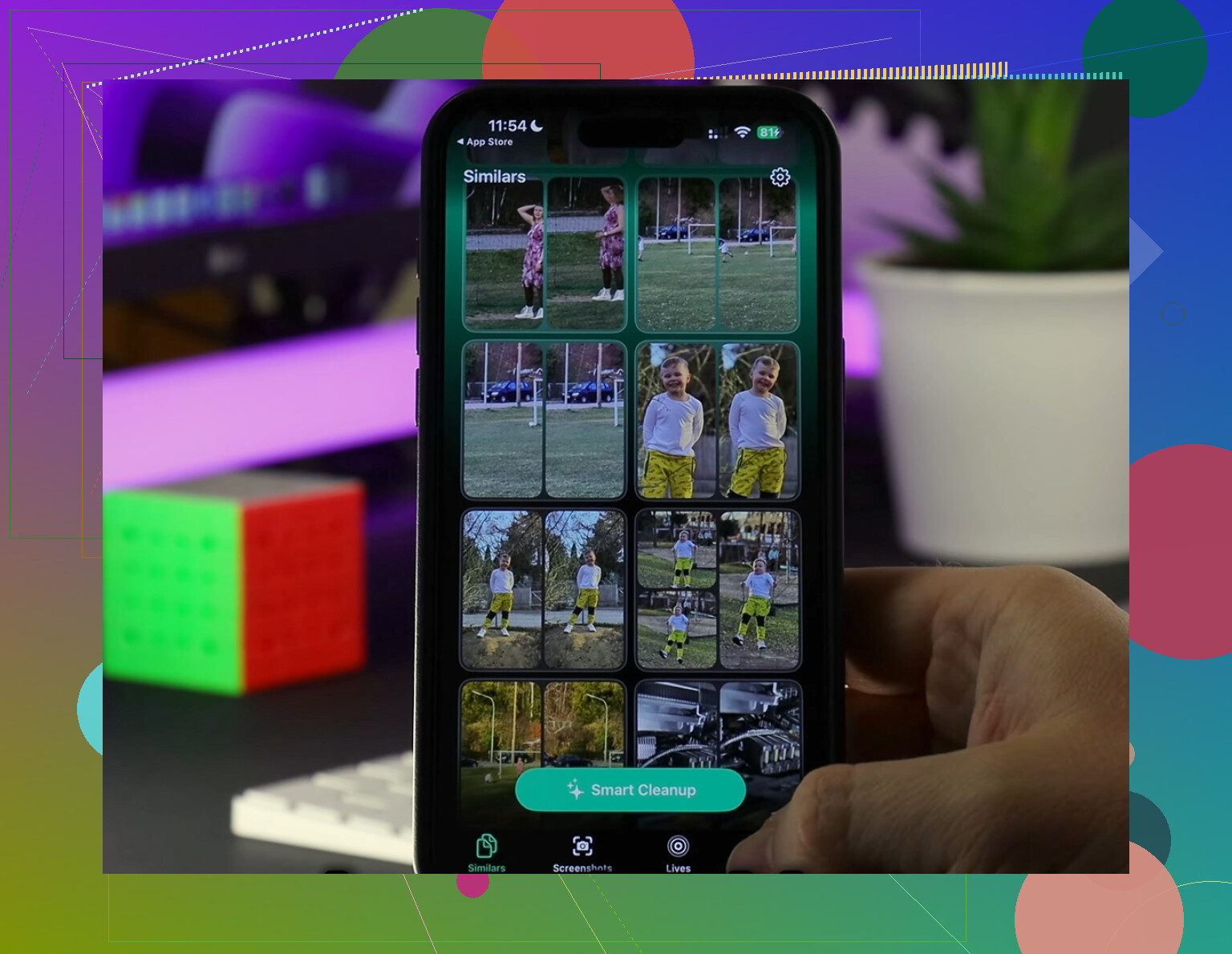
Yes, but only partly. iPhone has no real “clear temp files” switch, so built-in cleanup is more like trimming around the edges.
One thing I’d add beyond what @mikeappsreviewer and @viaggiatoresolare covered: check app-specific storage recommendations under Settings > General > iPhone Storage and actually wait for the list to fully load. Sometimes iOS surfaces “Review Downloaded Videos” or large attachments there, and people miss it because they leave too fast. Also check Mail if you use the Apple Mail app. Big attachments and synced accounts can quietly bloat local storage, and removing/re-adding a mail account can sometimes purge stale cache better than just deleting messages.
I’ll disagree a little on “System Data” panic too. Sometimes it looks huge because iOS is managing logs, swap, and caches dynamically. It can shrink on its own when space gets tight. So I would not obsess over that number unless it stays massive for days.
If you want only built-in tools, the most effective extra step is backup, erase, and restore. Annoying? yep. But it’s the closest thing to a deep cache reset Apple gives you.
If the real problem is photos, built-in tools are kinda weak. That’s where Clever Cleaner makes more sense. I found this hands-on Clever Cleaner review for freeing up iPhone storage useful for seeing what it actually does.
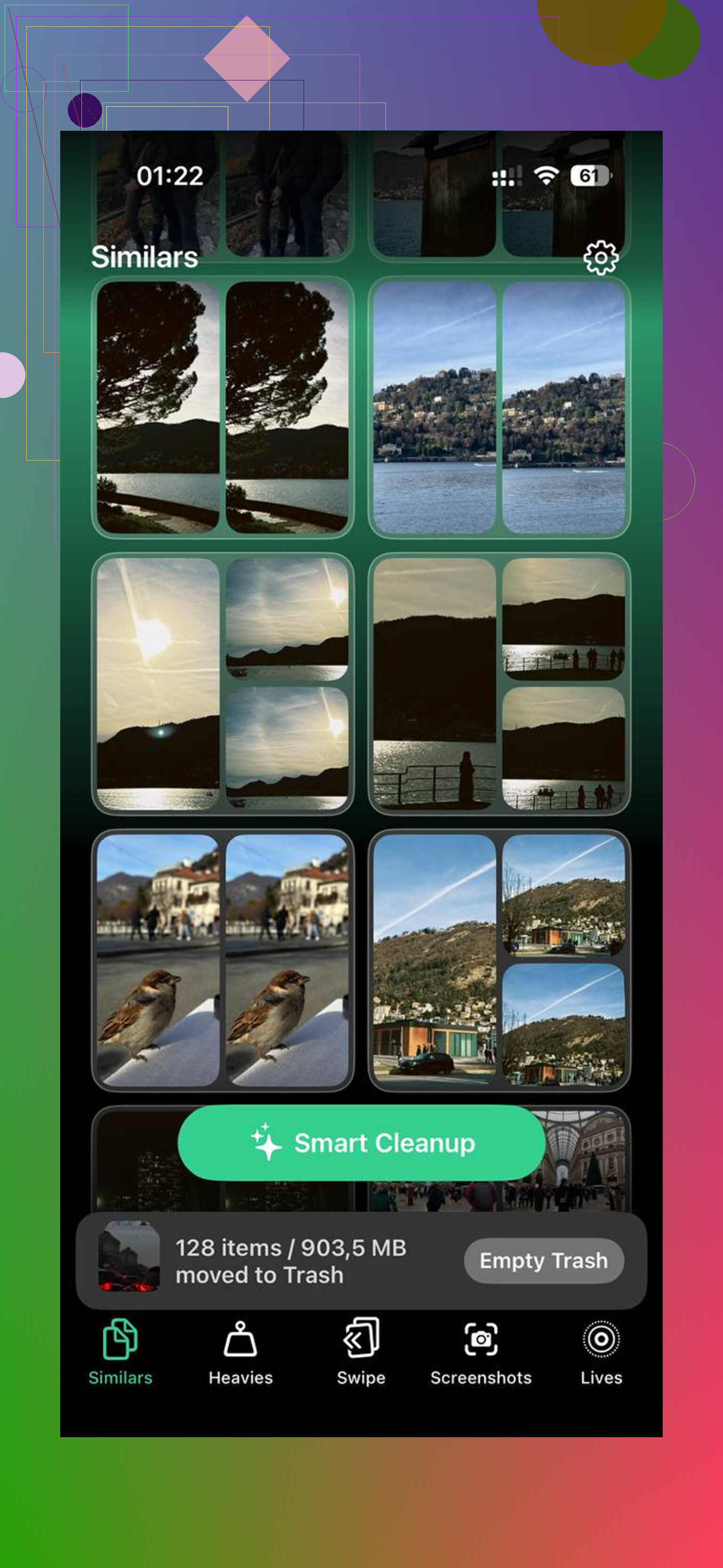
Yes, but I’d add one built-in trick nobody mentions enough: disable and re-enable apps that cache cloud data aggressively, like Notes, Voice Memos, or Mail syncing, if those are huge in iPhone Storage. Sometimes iOS rebuilds the local cache smaller after a resync. It’s clunky, but it can shave off space without third-party tools.
I slightly disagree with @ombrasilente on backup, erase, restore being the “most effective” built-in move for most people. It works, sure, but that’s a last resort, not normal cleanup.
Also check this oddball one:
Settings > Accessibility > Spoken Content > Voices
If you’ve downloaded extra Siri or accessibility voices, they can take a surprising chunk. Same idea with dictionaries and keyboards under General > Keyboard if you’ve added a bunch.
Where built-in tools fall short, I agree with @viaggiatoresolare and @mikeappsreviewer: photo clutter is usually the real problem. Clever Cleaner helps there.
Pros of Clever Cleaner:
- better at finding similar photos
- easier to spot giant videos fast
- quicker than manual cleanup
Cons:
- not necessary if your issue is mostly Safari or app caches
- another app to install when storage is already tight
- built-in tools are still safer if you want total control
So yes, you can clear a decent amount using only iPhone settings, just not with one master button.
The simplest alternative is iCloud Photos with Optimize iPhone Storage.
Go to Settings > your name > iCloud > Photos. Turn on Sync this iPhone, then select Optimize iPhone Storage.
Your full-resolution photos stay in iCloud. Smaller versions remain on your phone. This often frees several GB without sorting or deleting files. Leave the iPhone charging on Wi-Fi overnight. Storage may take a few hours to update.
You need enough iCloud space. Check your plan first, since the free 5 GB fills up prety fast.
Before you clear anything, actually look at the colored bar in Settings > General > iPhone Storage and see what’s real. Most people assume ‘temp files’ are the problem when it’s usually photos, videos, or one bloated app. Guessing wastes time.
The advice above is solid, but I think it’s getting overcomplicated. iOS has no temp file button because it clears most of that on its own when space runs low. So chasing System Data is mostly a dead end unless it stays huge for a week straight, which @ombrasilente already hinted at.
If your bar is mostly yellow (Media) or blue (Photos), no amount of Safari clearing or app reinstalls will save you. That’s the honest bit. Clever Cleaner earning a mention here makes sense for that photo pile, but only after you’ve confirmed photos are the issue. Don’t install a cleanup app to fix a Podcasts download problem.