My hard drive started showing disk errors after a recent crash, and Windows is running slower than usual. I’m looking for a safe, reliable disk repair tool that can scan for bad sectors, fix file system issues, and avoid data loss if possible. Any recommendations?
“Disk repair” can mean a few different things, so the right tool depends on what’s actually wrong. A program that’s good at getting files off a RAW drive is not the same thing as one that fixes a broken partition table, and neither one is the same as a health-check tool.
If the data matters, don’t start by running random repair commands. Figure out whether you’re dealing with file loss, partition damage, or a drive that may be physically failing.
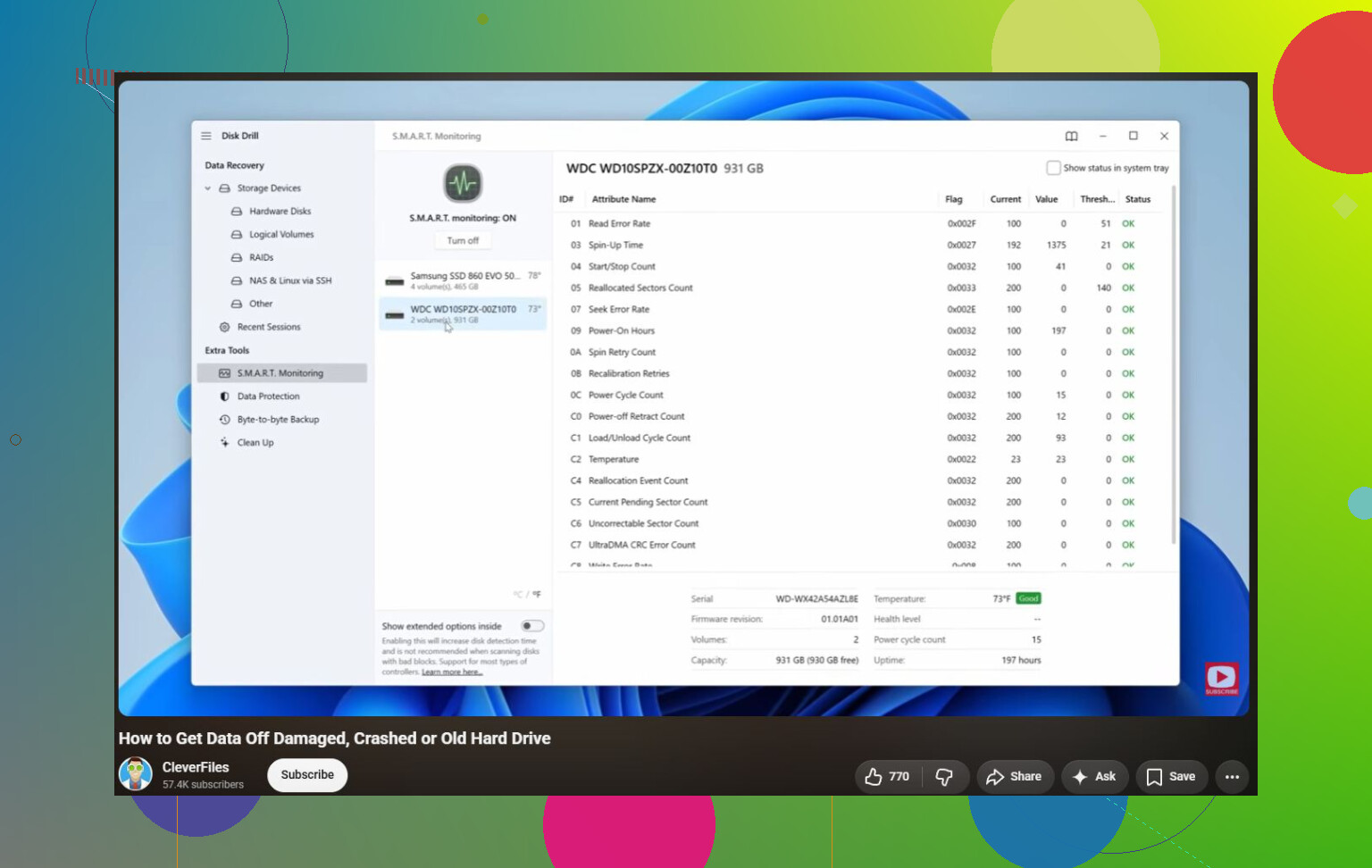
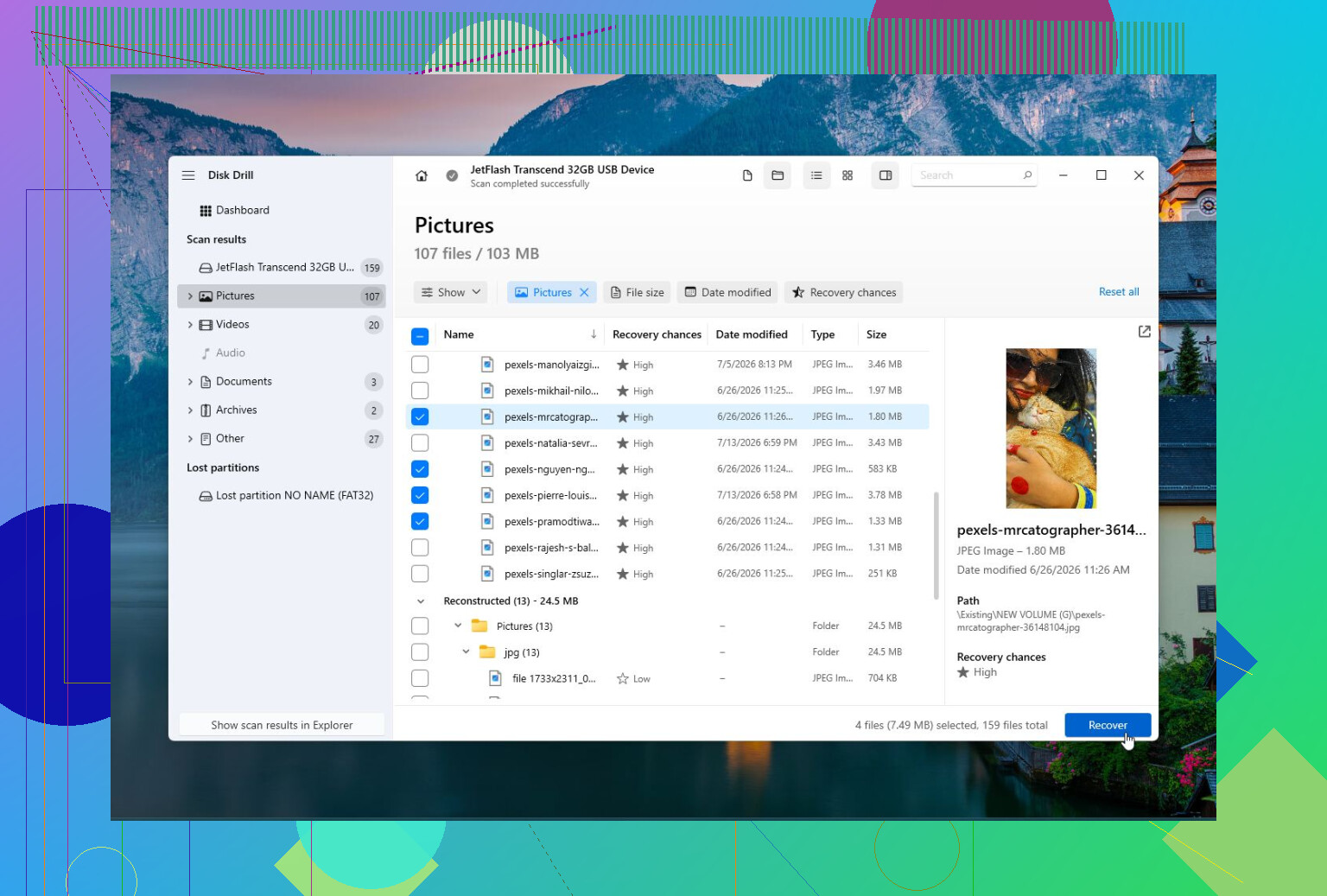
Disk Drill is the one I’d look at first if you care about recovering files. For example, if Windows says the drive needs to be formatted, the drive turned RAW, or something was deleted or formatted by accident, this is the safer direction to start with. It can scan corrupted or inaccessible drives, recover files, make a disk image from a failing drive, and check S.M.A.R.T. health. It’s also pretty approachable if you don’t want to deal with a technical interface.
Disk Drill is best for file recovery, especially from RAW, formatted, or corrupted drives. It also supports most common file systems and includes disk imaging and S.M.A.R.T. monitoring. The main downside is that it’s not meant for repairing partition tables or boot sectors.
For missing partitions or boot-related damage, TestDisk is usually the better fit. If a partition vanished, the disk suddenly shows as unallocated, or the partition table is messed up, TestDisk can often rebuild that structure. It’s free, open source, and works on Windows, macOS, and Linux. The catch is that it uses a text-based interface, so it’s easier to make a bad choice if you don’t understand partitions. It’s also not the best option if your main goal is recovering individual files.
CrystalDiskInfo is different. It won’t recover files or repair a file system, but it’s useful for checking whether the drive itself is healthy. It reads S.M.A.R.T. data, shows temperature, reports drive health, and can warn you when a drive is starting to fail. If you’re not sure whether the issue is software-related or the disk is dying, this is a good first check.
Also, if you’re trying to learn what file recovery from a damaged or RAW drive looks like, this video may help:
One thing I wouldn’t ignore: clicking sounds, random disconnects, freezing when reading files, or a growing bad-sector count usually point to hardware trouble. In that case, stop experimenting with repair tools and focus on getting the important files copied off first. Software can fix logical problems. It can’t undo physical damage to the drive.
https://www.youtube.com/watch?v=_e4D_2bu8LE

18 Likes
A bad Windows index after a crash is annoying; a drive that freezes or slows down every time you touch certain files is a different problem. In the first case, Windows’ own tools are usually where I’d start. In the second case, I would not “repair” anything yet.
For a drive that still reads normally, run a read-only check first from an admin Command Prompt:
chkdsk C: /scan
If it reports file system problems, then you can decide whether to run chkdsk /f. I’d be more cautious with chkdsk /r, because it scans the whole surface and can take a long time. On a weak drive, that extra stress can make things worse before you get your files off.
I agree with the earlier point about Disk Drill being more of a recovery tool than a true repair tool. That’s not a bad thing. If the drive has important files, recovery or imaging should come before repair. After the files are safe, then use CHKDSK, the manufacturer’s diagnostic tool, or replace the drive if S.M.A.R.T. looks bad. The mistake people make is treating “repair” as harmless. Sometimes it is. Sometimes it’s the last big write operation a failing disk gets.
Copy the irreplaceable files to another drive before you run any repair scan. That is the “safe” part most people skip, and no disk utility can promise safety if the drive is already throwing errors.
I’d separate this into two jobs: checking the drive and repairing Windows’ file system. They are related, but they are not the same thing.
If this is your system drive and Windows still boots, I’d do this in this order:
- Copy your important files somewhere else.
- Check S.M.A.R.T. health with CrystalDiskInfo or the drive maker’s own tool.
- If S.M.A.R.T. shows reallocated sectors, pending sectors, uncorrectable errors, or a warning state, stop thinking “repair” and start thinking “replace the drive.”
- If the drive health looks normal, then run Windows’ built-in repair tools.
For file system problems, Windows already has the tool you want:
chkdsk C: /scan
If it finds issues:
chkdsk C: /f
That may ask to run on reboot if it is the system drive.
I would not jump straight to chkdsk /r unless you have a backup or disk image. People recommend it because it checks for bad sectors, but it can take ages and it reads the whole disk hard. On a drive that is already struggling, that is not always a friendly thing to do. It is more of a “the data is safe, now let’s see what this drive looks like” command.
A missing caveat: if this is a desktop PC, check the boring hardware first. A bad SATA cable, loose power connector, flaky USB enclosure, or dying external drive adapter can look like disk corruption. If the drive is external, try another cable and another USB port before trusting any scan result. If it is internal, reseating or replacing the SATA cable is cheap and takes less time than a full surface scan.
Disk Drill makes sense if files are missing, the partition is RAW, Windows wants to format the disk, or you need to make an image before poking at it. I would not buy or install it just to “fix bad sectors,” because that is not really what tools like that are for. Bad sectors are handled by the drive firmware and the operating system marking space as unusable. If bad sectors are increasing, the fix is replacement, not a magic repair pass.
For manufacturer diagnostics, use the brand’s tool when possible. SeaTools for Seagate, WD Dashboard or Western Digital tools for WD/SanDisk, Samsung Magician for Samsung SSDs, Crucial Storage Executive for Crucial, and so on. Those are better for answering “is this drive still trustworthy?” than a generic repair app.
For SSDs, I’d be even less interested in old-school “surface repair” thinking. An SSD does not behave like a spinning hard drive with one scratchy area you can work around forever. If an SSD is reporting media errors or health is dropping fast, back it up and replace it.
So my short answer would be:
Use CHKDSK for file system repair.
Use the manufacturer’s diagnostic tool or CrystalDiskInfo for drive health.
Use Disk Drill or another recovery tool before repair if the files are the priority.
Replace the drive if health warnings or bad sectors keep appearing.
The annoying truth is that a “reliable disk repair tool” is usually a workflow, not one program. Backup first, diagnose second, repair last. If you reverse that order, you may fix the file system and still lose the drive.