My iPhone storage keeps filling up under Apps even though I have not installed anything new. I have deleted photos, cleared messages, and restarted the phone, but the app storage size still keeps growing. I need help figuring out what is causing this and how to stop it before I run out of space completely.
I ran into the same mess on my iPhone, and yeah, the numbers look wrong at first.
You look at your apps and think, I only installed a couple dozen things, none of them look huge. Then iPhone Storage says ‘Applications’ is eating a giant chunk of space. I had the same reaction. It felt off.
What helped me was realizing ‘Applications’ does not mean only the app files you downloaded from the App Store.
It also includes stuff tied to those apps, like:
User data. Your logins, saved preferences, local files, drafts, downloads, and whatever the app keeps for you.
Support files. Extra language files, bundled resources, offline pieces, and other app-related data.
Cache. This was the big one on my phone. Cached files pile up when apps save temporary stuff so they load faster later. Social apps save images and videos. Browsers keep site data. Games stash assets. So even if you install nothing new, the Applications section keeps growing because your existing apps keep hoarding data.
A lot of people mix this up with System Data. They are not the same thing.
Applications is tied to the apps you installed.
System Data is iPhone-level stuff. Siri voices, fonts, dictionaries, logs, indexes, and system leftovers. Apple used to call part of this ‘Other,’ which did not help anyone. Both categories grow over time, but app storage is usually the part you can clean up more directly.
What worked for me first was offloading apps.
Go to Settings > General > iPhone Storage. Tap an app. Use ‘Offload App.’
This removes the app itself but keeps its documents and data. So your account info and saved files stay there. If you reinstall later, the app comes back with your stuff still attached. I used this on apps I had not touched in months and got space back fast without wiping everything.
For apps like Telegram or Safari, check their own settings because some of them let you clear cached data without deleting the whole app.
Safari is easy:
Settings > Safari > Clear History and Website Data
For apps with no cache button, the blunt fix is still the one I ended up using. Delete the app, then install it again. Annoying, yep. Effective too. It clears out the built-up junk hidden in the app’s data folder.
A side note from my own phone. Once my free space dropped too low, the whole thing started acting weird. Apps crashed. Camera opened slow. I kept getting storage warnings. After digging around, I found out iPhones need free room to move data around. On mine, once I got back above roughly 6GB free, the slowdowns eased up. Before that, it felt bogged down all day.
I tried sorting it all by hand. Took forever. I missed stuff. So I ended up using a cleanup app to speed the process up.
I found https://www.youtube.com/watch?v=PJZfJnOUmRE
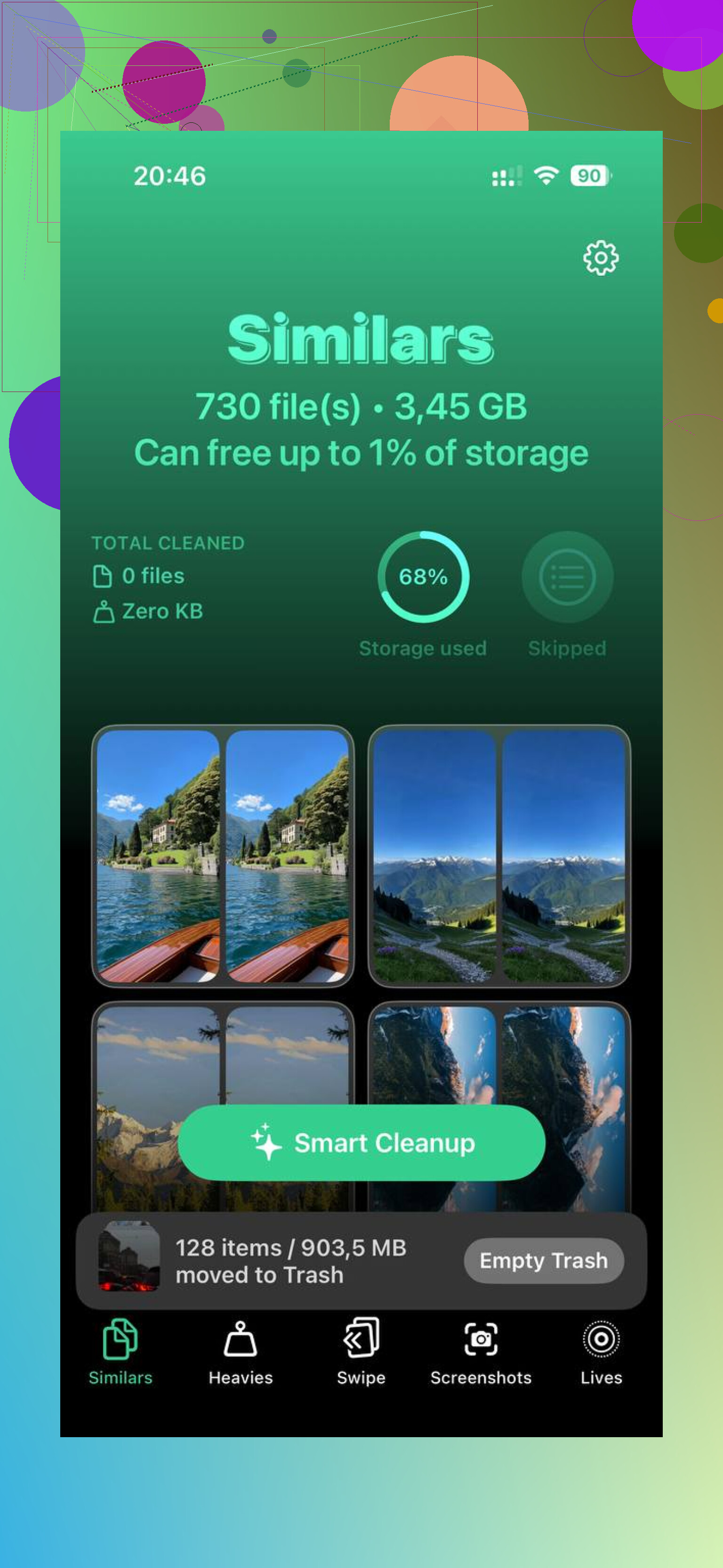
What stood out to me was the simple layout. One section grouped large media files so I could see what was taking the most space without tapping through ten menus. Another section flagged near-duplicate photos, which mattered because I always take three or four of the same shot and forget to clean them up later. It also showed file sizes clearly, including screenshots, which helped more than I expected.
The other part I liked was privacy. It handled the scan on the phone itself, so I was not dumping my photo library onto some random server. After clearing around 15GB, my iPhone felt normal again. Less lag, fewer storage popups, camera launched faster.
If your storage chart looks fake, it usually is not fake. Apple is counting more than the app icons make you think. The main things to check are cached data, app-specific downloads, and old apps you do not use anymore. That is where I found most of the wasted space.
83 Likes
One thing I’d add to @mikeappsreviewer, the storage graph itself is often delayed or mis-categorized for a while after cleanup. So if you deleted photos and messages today, “Applications” might still look bloated until iOS finishes reindexing. I’ve seen it take hours, sometimes overnight.
A few things worth checking that people miss:
-
App downloads inside apps.
Netflix, Spotify, YouTube, Podcasts, Google Maps, Kindle. These store offline files under the app total. Those add up fast. -
Mail attachments.
Apple Mail stores local copies and attachments. If you use multiple mail accounts, the app size grows with no new installs. Removing and re-adding the mail account often trims it. -
Files app.
Look in Files, On My iPhone, and Downloads. Safari downloads often sit there forever. So do ZIPs and video edits. -
Voice memos and editing apps.
CapCut, iMovie, GarageBand, Lightroom, Snapchat. Drafts and project files stay local. -
Failed iOS update files.
Settings, General, iPhone Storage. Scroll for an iOS update file. If you see one, delete it.
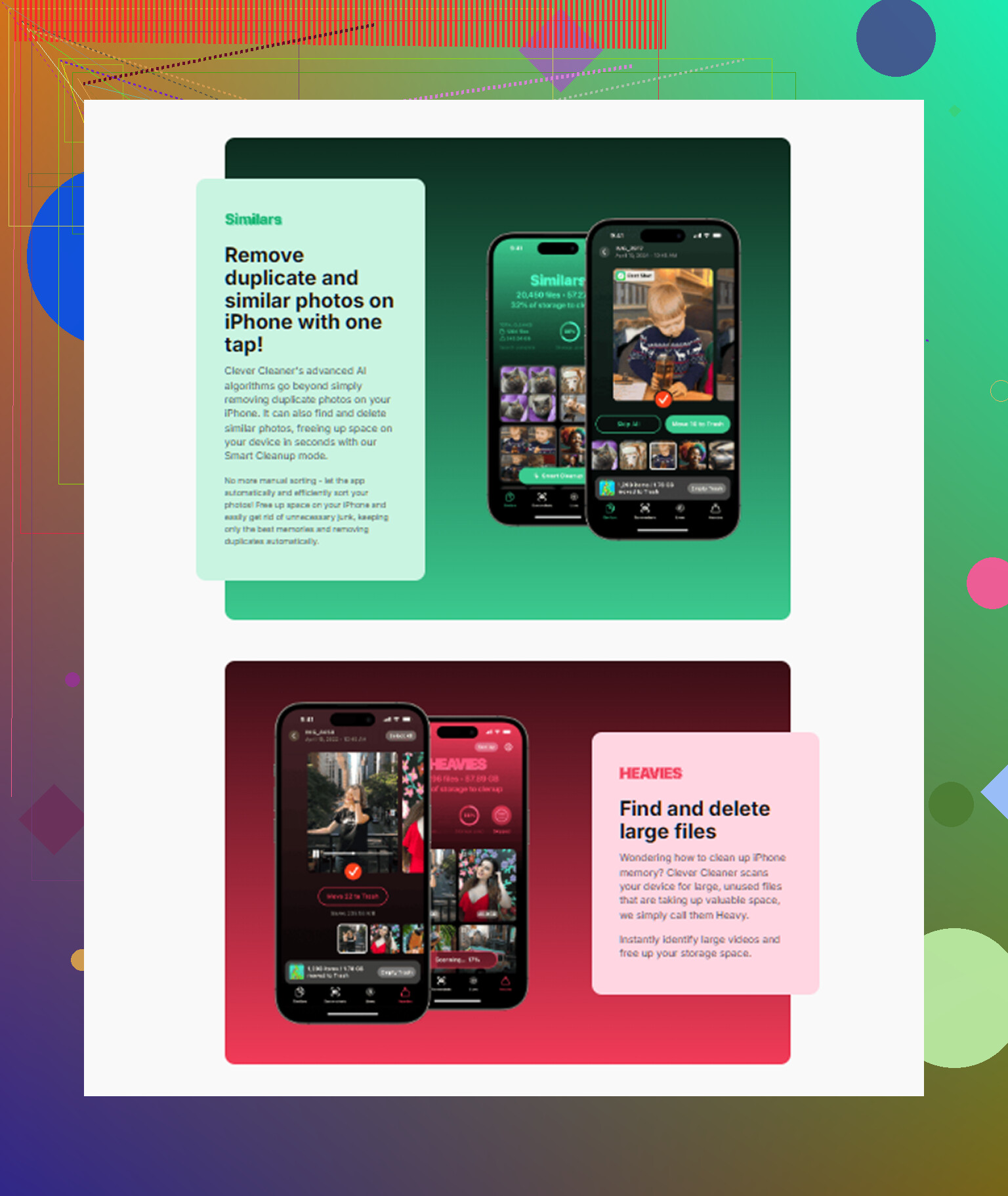
If you want a faster cleanup pass, Clever Cleaner is worth a look. It helps spot heavy media and dupes without endless menu tapping. Also, people discussing free iPhone cleaner apps on Reddit keep mentioning it here, see what Reddit users say about Clever Cleaner for iPhone storage cleanup.
One place I disagree a bit with @mikeappsreviewer, offloading is fine, but it won’t shrink Documents and Data much. If the bloat is inside app data, offload often does almost nothing. Delete and reinstall works better for stubborn apps. Kinda annoyng, but true.
What usually gets missed is iOS background churn. Even if you install nothing, apps keep generating local stuff from normal use: search indexes, notification attachments, shared sheet copies, sticker packs, edited-photo temp files, podcast/artwork databases, even failed sync leftovers. So yeah, the “Applications” bar can creep up all by itself.
I mostly agree with @mikeappsreviewer and @hoshikuzu, but I’d push on one thing: if the storage number keeps changing a lot day to day, sometimes the culprit is not one bloated app, it’s constant syncing. iCloud Photos, Messages in iCloud, WhatsApp, Mail, Notes with attachments, all can re-download or rebuild local caches after you “cleaned up.” Feels fake, but it’s real-ish.
A few checks they didn’t really get into:
- Turn off Background App Refresh for junk apps you don’t care about.
- Check Settings > Apple ID > iCloud and see what is syncing heavily.
- In Photos, make sure “Optimize iPhone Storage” is on.
- Look at message apps for auto-download media settings.
- If you use Apple Music or Podcasts, disable automatic downloads.
Also, if an app’s size keeps ballooning again right after reinstall, that app is just a storage pig. At that point I stop babying it and use the web version instead. Kinda harsh, but meh.
If you want a quicker way to spot oversized media and duplicates without digging through ten menus, Clever Cleaner is worth a look. I also found this detailed Clever Cleaner review for freeing up iPhone storage pretty easy to skim.
If none of that changes the graph after 24 to 48 hours, backup the phone and do a restore. Annoying fix, but sometimes iOS storage reporting gets borked and that’s the only thing that fully resets it.
One angle I think @hoshikuzu, @waldgeist, and @mikeappsreviewer only partly touched is corrupted storage accounting from app groups and shared containers. Some apps do not store everything inside their own little bucket. They dump data into shared space used by widgets, extensions, keyboards, watch companions, or file providers. That can make the “Applications” total rise even when no single app looks absurdly large.
A few less-obvious checks:
- Delete unused widgets from the Home Screen and Lock Screen. Some widget-heavy apps keep snapshots and refresh data locally.
- Remove third-party keyboards you installed but forgot about. Keyboard packages can keep language models, themes, GIF caches.
- If you use an Apple Watch, unpairing and repairing sometimes clears companion app junk that still counts under apps.
- Check VPN, ad blocker, scanner, and document-signing apps. These often cache logs, downloaded lists, or scanned PDFs quietly.
- Open Files and look under tags like Recent, not just folders. Stuff can hide there and still belong to apps.
- In Settings > Accessibility > Spoken Content / VoiceOver / Live Speech, see whether extra voices were downloaded. Those are not always reported where people expect.
One place I slightly disagree with the usual advice: “just wait 24 hours” is fine once, maybe twice. If the Applications bar keeps climbing every day, it is usually not just indexing. Something is actively writing data.
My test would be:
- Note free space.
- Turn off Background App Refresh and Low Power Mode off for a few hours of normal use.
- If storage still drops fast, the culprit is probably downloads, sync, or a bad app.
- If it stabilizes, background activity was feeding the bloat.
If you want a quicker audit, Clever Cleaner is decent for surfacing large media without digging everywhere.
Pros:
- fast visual scan
- easy duplicate finding
- simpler than hunting through iOS menus
Cons:
- not magic for true app cache
- may not touch shared container junk
- still need manual cleanup for some apps
If the number grows even in Airplane Mode overnight, I would seriously suspect a buggy app or broken local database, not normal cache growth.
You already covered caches, in app downloads, Mail, Files, failed updates, offload, delete and reinstall, widgets, keyboards, Watch, voices.
Simpler fix. Do an encrpyted backup, wipe, then restore.
- Update iOS.
- Connect to Mac or PC, Finder or iTunes, choose Encrypt local backup, Back Up Now.
- On iPhone, Settings, General, Transfer or Reset iPhone, Erase All Content and Settings.
- Restore from the encrpyted backup.
- Leave on charger and Wi Fi for reindex.
This flushes caches, shared containers, orphaned data. I reccomend it for stubborn growth. I’ve seen 3 to 10 GB freed. Quick, repeatable.