My iPhone photo library is packed with duplicates, screenshots, and blurry pictures, and iCloud storage is almost full. I’m looking for the best way to clean up iPhone photos without accidentally deleting anything important.
The fastest improvement for me was to stop treating the whole photo library like one giant cleanup project. Once you have tens of thousands of photos, manual scrolling turns into a waste of time pretty quickly.
I had around 45,000 photos and thought I could knock it out in one night. After about eight hours, I was still scrolling and barely deleting anything. The problem wasn’t finding bad photos. It was constantly deciding between five versions of the same shot.
What worked better was breaking the cleanup into separate tasks.
Use the Photos app for the obvious stuff
For regular cleanup, the built-in Photos app is still fine. The selection gestures are way faster than tapping one image at a time, especially if you’re working through an album.
If you’re cleaning screenshots or another specific category, check for a Select All option. That can save a lot of time when you already know the whole group can go.
I’d also avoid starting from the full chronological library if you can. Going album by album feels a lot less painful and makes it easier to stay focused.
Don’t manually compare duplicates and near-duplicates
This was the part that burned the most time for me. Photos helped with exact duplicates, but exact duplicates weren’t really the main storage problem. It was stuff like repeated meal photos, concert shots, accidental bursts, Live Photos, screenshots, and big videos.
For that, I used Clever Cleaner. The useful part was that it grouped similar photos together, so I wasn’t comparing everything from scratch. It also split out screenshots, found large videos, and could convert Live Photos into normal still photos when that made sense.
Reviewing already-grouped photos was much faster than deciding one by one. That probably cut the cleanup time by more than half.
Pay attention to iCloud and Recently Deleted
If you use iCloud Photos, remember that you’re working with one synced library. Delete something on your iPhone and it also disappears from iCloud and your other Apple devices using that same library. That’s usually the point when you’re cleaning up, but it’s worth thinking about before you delete a huge batch.
Also, storage may not drop right away. Check Recently Deleted after the cleanup. Until you empty it, or until the retention period runs out, those files can still be taking up space.
The other thing that made a big difference was sorting my effort by file size instead of photo count. Deleting hundreds of screenshots barely moved the needle. Removing a few old 4K videos gave back a ton of space.
So I’d focus first on:
- old videos
- screen recordings
That usually does more than deleting random photos scattered through the library.
Now I just do a quick pass every week or two. Ten minutes deleting recent screenshots, blurry shots, and obvious duplicates is enough to keep it from turning into another full-weekend project.
So yes, there are faster ways than endlessly scrolling. I’d use Photos for the easy bulk cleanup, use Clever Cleaner for similar photos, duplicates, screenshots, Live Photos, and large videos, then empty Recently Deleted when you’re done.
13 Likes
Do not start deleting big batches until you know whether iCloud Photos is syncing originals or optimized copies, because a “deleted from phone” photo may be deleted everywhere.
For a safer cleanup, export anything important to a computer or external drive first, then work on obvious categories like screenshots and videos. Cleaner apps can speed up the sorting, but I would still review every delete group before confirming.
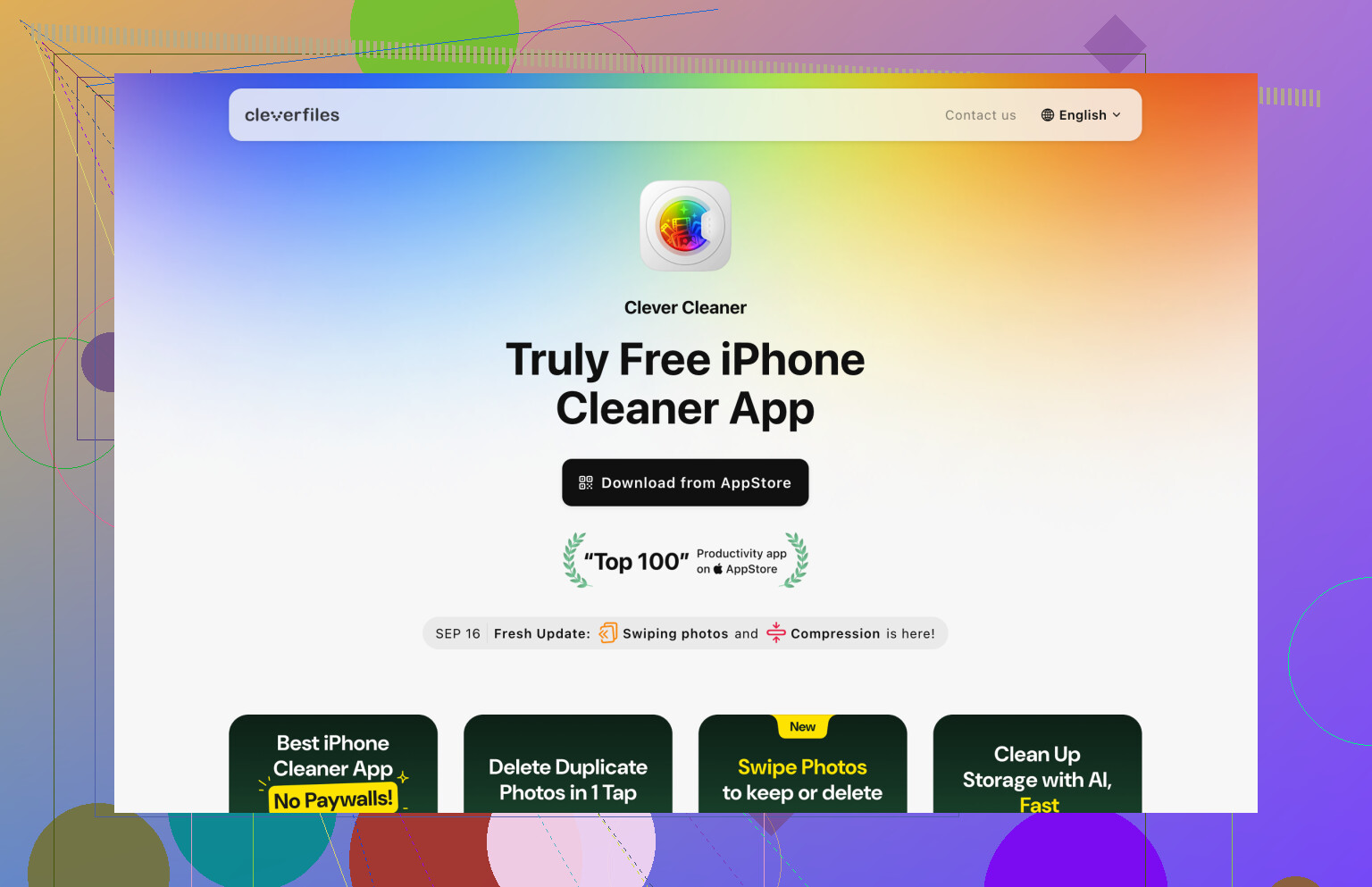
Turning on Optimize iPhone Storage is not a cleanup plan; it only buys space on the phone, not in iCloud. If your iCloud storage is almost full, you have to reduce what is actually in the Photos library, especially videos, screen recordings, Live Photos, and big copied-over files.
I’d start by checking what is really using the space before deleting anything. Go to iPhone Storage and iCloud Storage separately, because they are not the same problem. If Photos is the iCloud hog, use the Photos app’s Media Types albums first: Videos, Screen Recordings, Screenshots, Bursts, and Duplicates. That is less risky than swiping through Recents and trying to make judgment calls while tired.
Cleaner apps like Clever Cleaner can be useful for similar shots, but I would not let any app decide automatically unless the photos are obviously junk. Similar does not always mean duplicate. A baby photo, pet photo, receipt, whiteboard, or document scan can look “bad” to software but still matter to you. My boring rule would be: delete aggressively only in low-value categories, review carefully in camera-roll memories, then leave Recently Deleted alone for a day before emptying it if you are nervous.
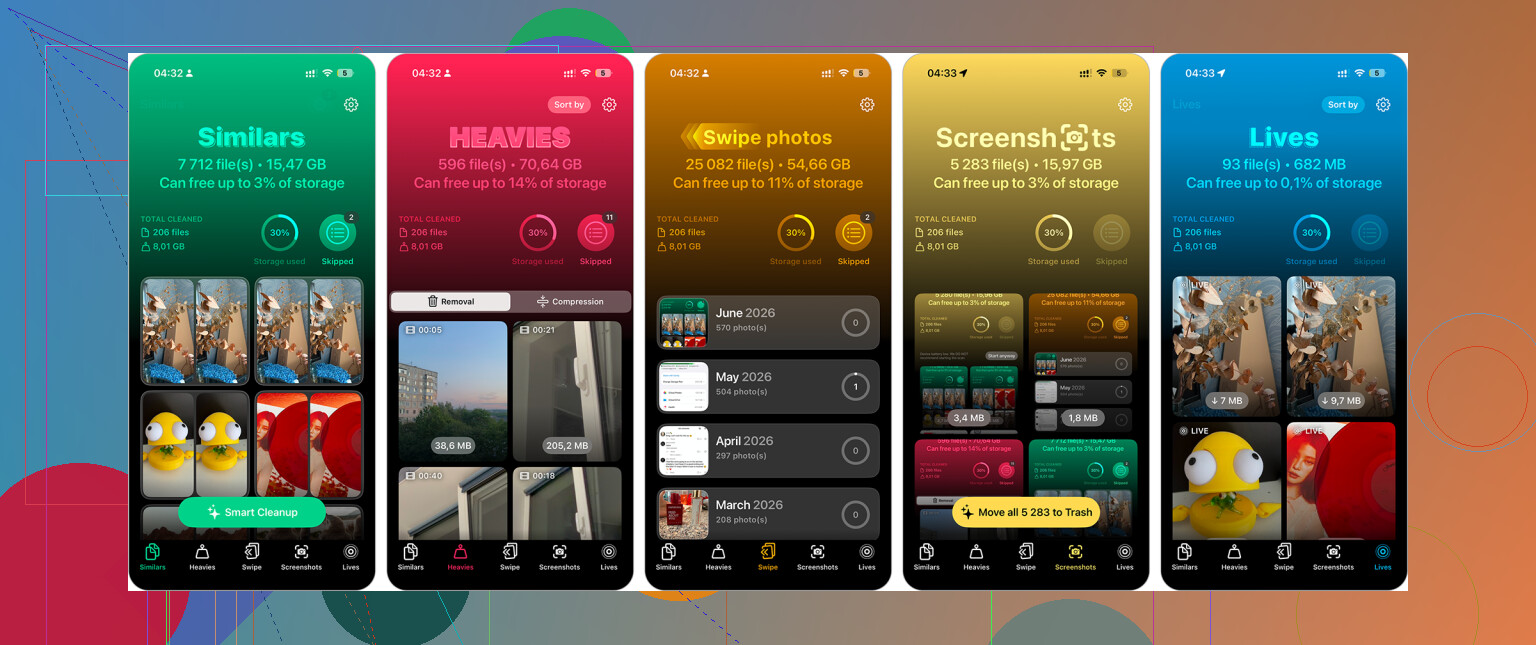
Don’t do your first big purge from the tiny iPhone screen if you have another option. A lot of accidental deletions happen because thumbnails all look the same, especially with kids, pets, documents, receipts, or trip photos where the “bad” one may still be the useful one.
If you have a Mac signed into the same iCloud Photos library, use the Photos app there for the judgment-heavy part. The bigger screen makes it much easier to compare similar shots, read screenshots, and spot whether a blurry photo is actually a receipt, serial number, parking sign, whiteboard, etc. You can also export anything questionable to a folder or external drive before deleting it from the library.
I agree with the others that videos and screen recordings are where the real storage usually is, but I’d be less aggressive with screenshots than people often suggest. Screenshots are boring, but they can contain passwords you changed, order confirmations, medical info, addresses, ticket QR codes, or random proof of something. I’d delete memes, duplicates, and old app screens fast, but skim anything that looks like a document or receipt before wiping the whole album.
For the iPhone-only route, I’d do it in passes instead of trying to “finish” the library. First pass: large videos and screen recordings. Second pass: obvious junk screenshots. Third pass: duplicates or similar photos, using Photos or something like Clever Cleaner if you want grouped suggestions. The important bit is to treat cleaner apps as sorting tools, not decision makers. Let them gather the mess into piles, then you approve the trash.
And leave Recently Deleted alone for a little while unless you are desperate for space immediately. It is annoying that the storage does not fully come back right away, but that delay is your safety net. A cleanup that takes two days is better than realizing five minutes later that you deleted the only clear photo of a document or event.