My original Element TV remote stopped working and replacing it is more expensive than I expected. I’ve tried a couple of “universal remote” apps on my phone, but none of them seem to recognize my Element model or they only partially work. Can anyone recommend a truly free universal remote app that fully supports Element TVs and explain how you got it set up? I’m hoping to control power, volume, and HDMI inputs without buying a new physical remote.
If your Element TV remote walked off, broke, or you are tired of hunting for batteries at 11 PM, using your phone as a remote is the least painful fix I have found.
Element TVs are a bit odd because they run on different systems. Some use Roku, some use Fire TV, some run Android TV or Google TV, and older ones are not smart at all. What worked for me was treating the TV more like a device on my network instead of “a TV with a missing remote”.
Here is what has worked best, from most universal to most picky.
- Using a universal app: TVRem
Link to the app:
https://apps.apple.com/us/app/tvrem-universal-tv-remote-app/id6746162794
Video walkthrough:

I ended up trying TVRem first because I did not know which OS my Element TV used. No clue from the box, no clue from the manual. TVRem did not care.
It works with:
Android TV
Google TV
Fire TV
Roku TV
So if your Element is any of those, you are usually fine.
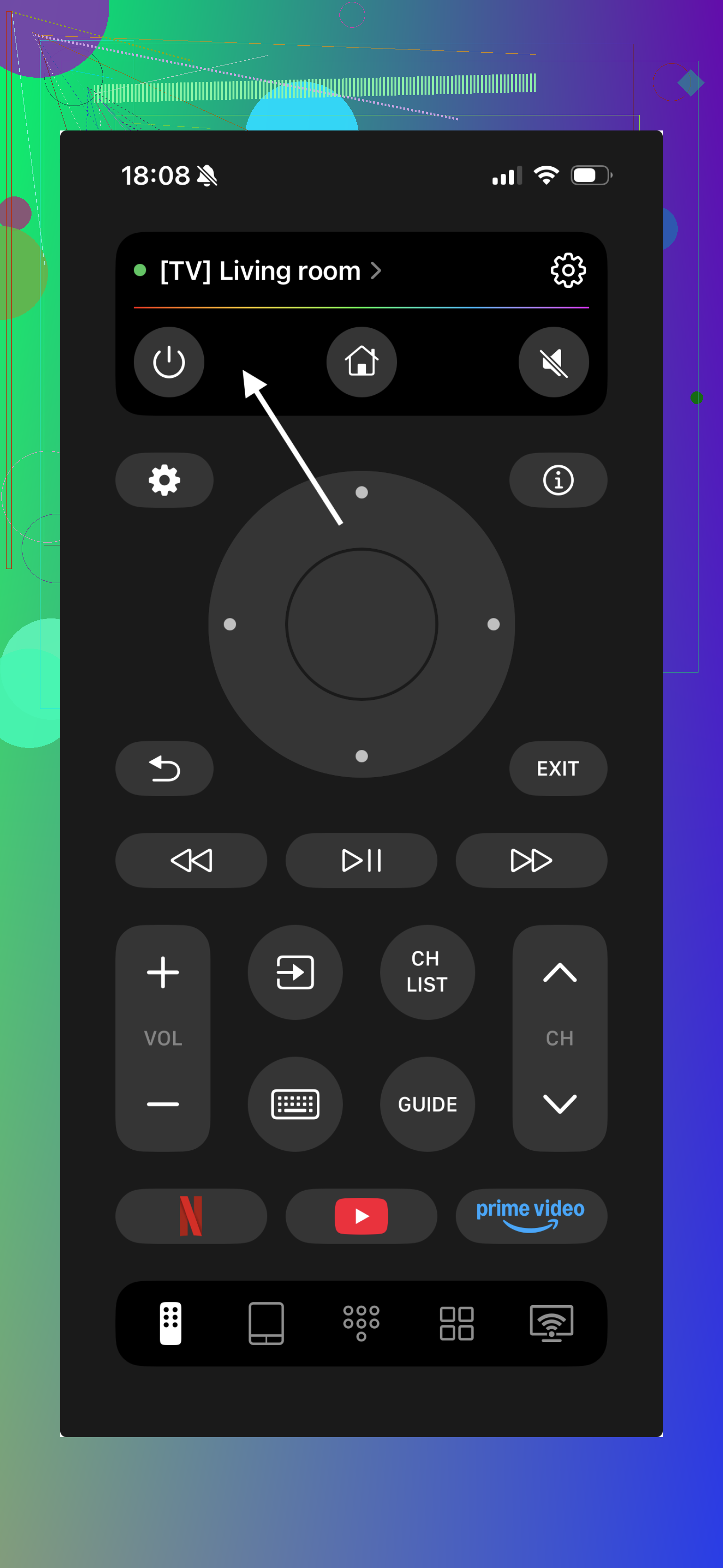
What it let me do on my Element:
• Change volume and channels
• Use arrows, OK, back, home, etc
• Use a touchpad style control instead of clicking arrows 20 times
• Type using the phone keyboard inside apps like YouTube or Netflix
• Switch between TVs or streaming devices in the house without pairing new hardware
The Wi‑Fi part is important. Your phone and TV need to be on the same Wi‑Fi network. I messed this up once by having the phone on a guest network and the TV on the main network. The app saw nothing until I fixed that.
How I connected TVRem to my Element TV
- Installed TVRem Universal Remote on my iPhone from the App Store.
- Checked that my phone and the Element TV were on the same Wi‑Fi.
- Opened TVRem. It scanned and showed a list of devices on the network.
- Tapped the Element TV.
- The TV asked to confirm pairing. I accepted using the TV buttons on the side.
After that, the phone behaved like a full remote.
If you have no idea what OS your Element uses, this is probably the least annoying path. You do not have to figure out if it is a Roku Edition, Fire Edition, or whatever marketing came up with that year.
- Using the official Element remote apps by OS
Some Element models are not “Element OS” at all. They are branded Roku TVs or Fire TVs, and those use their own mobile apps instead of something Element specific.
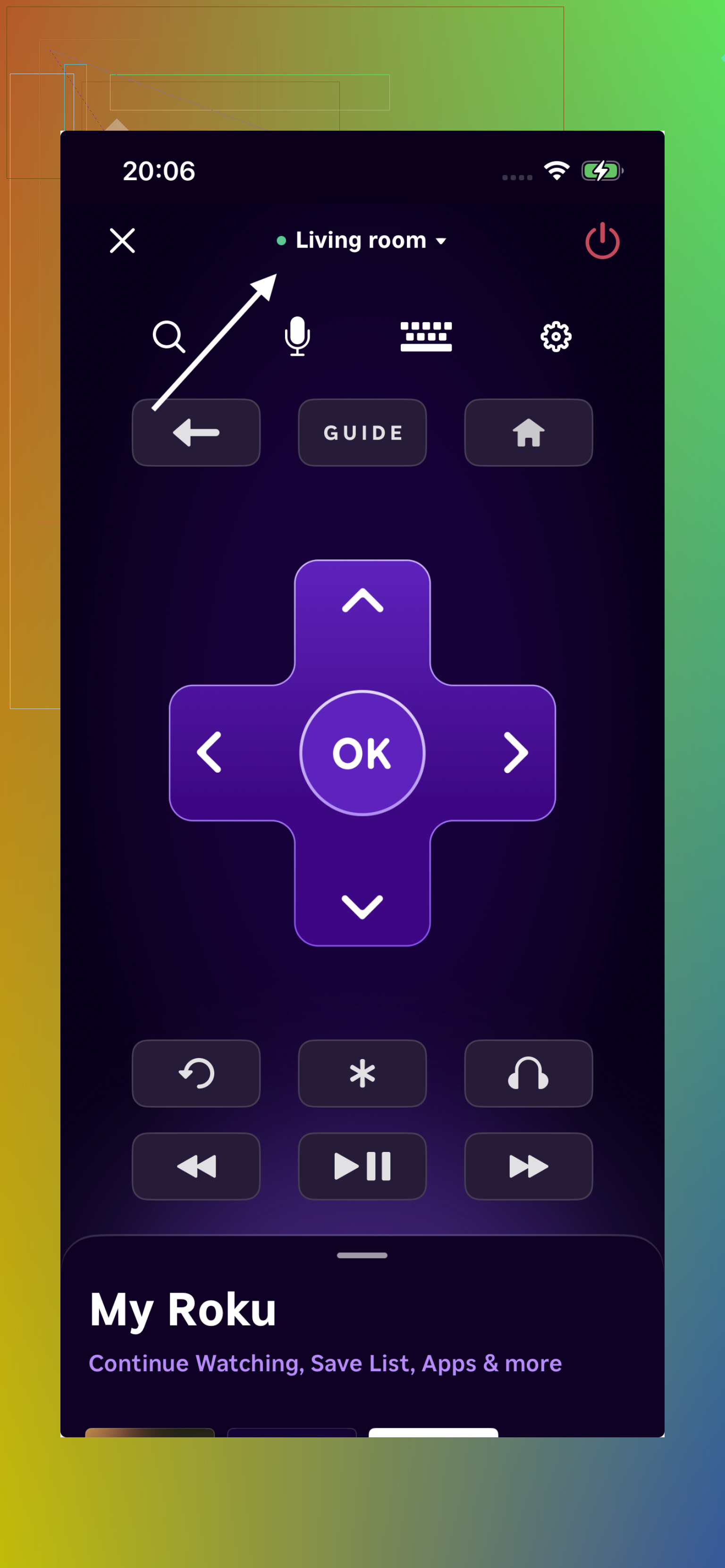
Here is the short version:
• Element Fire TV Edition → use the Amazon Fire TV app
• Element Roku TV → use the Roku mobile app
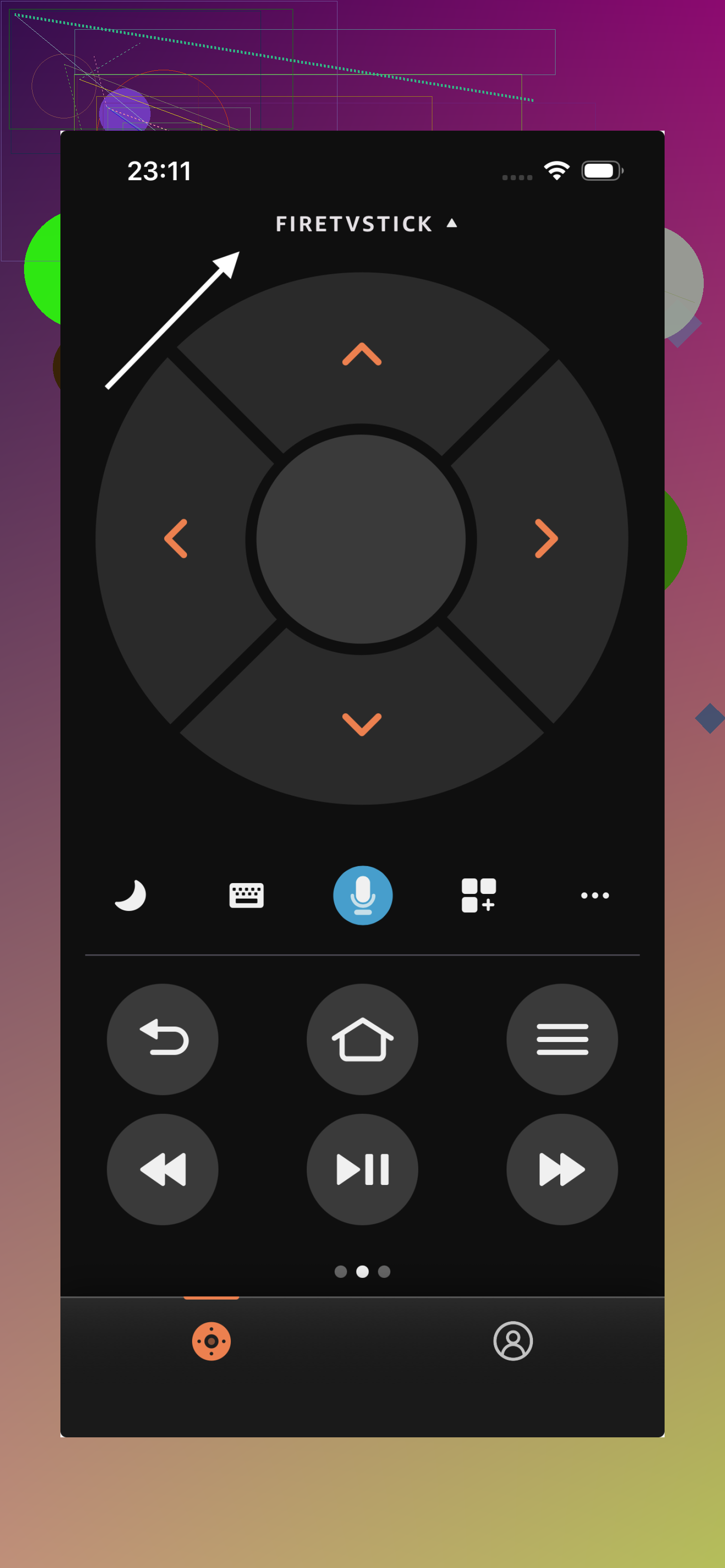
Both apps control the TV over Wi‑Fi. On my friend’s Roku Element, the Roku app did all of this:
• Arrow navigation and OK
• Volume up and down, mute
• Launch channels and apps
• Private listening with headphones connected to the phone
On a Fire TV model, the Amazon Fire TV app behaved almost the same. It showed the TV, remote buttons, app launcher, and a keyboard for text input.
Setup process is usually something like this:
- Install Roku or Amazon Fire TV app from the app store.
- Connect your phone to the same Wi‑Fi network as the TV.
- Open the app, wait for it to auto-detect the TV.
- Tap the TV, confirm any PIN or on-screen pairing prompt.
Catch: these apps are picky about platform.
The Roku app will not control a Fire TV Element. The Fire TV app will not control a Roku Element. If you have the wrong one, it simply never finds the TV.
If TVRem finds your TV with no hassle, I would stick to that. If you know for sure your Element is a Roku or Fire model, the official apps feel a bit tighter integrated, but they lock you into that ecosystem.
- Using IR remote apps for old non-smart Element TVs
If your Element TV is old and does not connect to Wi‑Fi, the whole “network remote” thing will not help you.
In that case, your only phone-based option is an infrared app, and that depends on hardware in your phone.
Here is the catch:
iPhones do not have IR blasters.
Most recent Android phones do not have them either.
Some older or specific Android models still do, like several Xiaomi, Huawei, some LG and a few others.
If your Android phone has an IR blaster, you can install a generic IR remote app, select Element as brand, and it will blast signals like a physical remote.
These apps usually offer:
• Power on and off
• Volume up and down
• Channel up and down
• Input/source change
The experience is similar to a cheap universal remote from a dollar store, just on your phone screen.
Downsides I hit when testing on an older Android with IR:
• You must point the phone toward the TV sensor. If you block it, nothing happens.
• Lag is small but noticeable compared to Wi‑Fi remotes.
• Not all Element models respond to the same IR codes, so you might have to test several “Element” profiles in the app.
If your phone has no IR hardware, skip this entire route. No app will fix missing hardware.
Relevant topics
What I would pick if I had to start over
If you want the least effort and you have a smart Element TV:
Use TVRem:
Reason:
• Works across Roku TV, Android TV, Google TV, and Fire TV models
• Lets you skip guessing what OS your TV uses
• One app handled multiple TVs in my place
Official Roku and Fire TV apps are fine if you already know your TV platform and like staying “native”.
IR apps are a last resort for older non-smart TVs and only if your Android phone has an IR blaster. If not, you are back to either buying a remote or getting a universal physical one.
For everyday use, TVRem on Wi‑Fi ended up replacing the physical remote for me. The only time I missed the hardware remote was when guests wanted to use the TV without asking where the app was on my phone.
173 Likes
Short answer for Element: free apps work, but only if you match how your specific TV is built.
Since @mikeappsreviewer already covered TVRem and the official Roku / Fire apps, here are some other angles that avoid repeating the same steps.
- Figure out what your Element actually is
Look for any of these on the boot screen or home screen:
• “Roku TV” logo → use Roku app
• “Fire TV Edition” or Fire interface → use Amazon Fire TV app
• Big Google Play Store icon or “Google TV / Android TV” text → treat it as Android TV
• No smart menu at all → old non smart set, needs IR or a cheap physical remote
If the interface is generic and slow with a weird app store, many of those Elements behave like basic Android TV.
-
For Android TV / Google TV style Elements
Try one of these free apps on the same Wi Fi as the TV:
• Google TV app (Android / iOS). On Android it has a built in remote tab that works with many Android TV sets.
• “Android TV Remote Control” from Google on older phones, if you still find it.
These often pick up Element models that third party “universal” apps miss. -
For Fire or Roku based Elements that refuse to show up
If your TV is wired with Ethernet and your phone is on Wi Fi, some apps will not see it. Put both on the same router and same subnet.
Also, temporarily turn off any “AP isolation” or “client isolation” in your router Wi Fi settings. That setting blocks phone to TV communication.
I disagree a bit with the idea that “if the app does not see it, move on fast”. For Element, half the battle is the network setup, not the app. -
For old non smart Element with no network
If your phone is Android and has IR, try:
• Mi Remote
• AnyMote
Pick brand “Element” or sometimes “Seiki” or “Westinghouse”. Element reused code sets. I got an older 32 inch Element to respond under Seiki when Element failed.
Test each profile. Hit Power and watch for a blink. If one button works, save that profile. -
If none of the phone apps work and you want free or cheap
Two practical options:
• Buy the cheapest physical universal remote that lists Element or uses code sets for “Funai / Emerson / Seiki”. Many Elements respond to those.
• If the TV supports HDMI CEC, use another device’s remote. Example: a Roku or Fire Stick remote often controls TV power and volume over HDMI CEC after you enable it in both device and TV settings. That way your “remote” is the streaming stick, not the phone.
So, realistic plan:
- Identify OS from the home screen logo.
- Use the official OS app first.
- If it looks like Android TV and Google TV app remote works, stick with that.
- For non smart models, IR app only works if your phone has an IR blaster. If not, a dirt cheap universal remote or a streaming stick remote via HDMI CEC is less painful than fighting random “universal” phone apps that never find Element in their database.
Short version: you can get “free” control, but with Element you often need a hybrid approach instead of hunting for a single magic app.
I agree with @waldgeist, @cazadordeestrellas and @mikeappsreviewer that the OS matters more than the brand printed on the bezel. Where I’d push back a bit is on the idea that you should instantly give up on any app that does not auto detect the TV. With Element, some quirks are worth troubleshooting once before you quit.
A different angle that has worked for me:
1. Use your router to see what the TV actually is
Instead of guessing from the home screen:
- Log into your router’s device list.
- Find the TV by its IP or MAC.
- Check the “vendor” or hostname fields.
You’ll often see clues like:
roku/roku-tvamazon/aftt‑something for Fireandroid/googleor an OEM name that screams Android TV
Once you know that, all the advice from the others about Roku, Fire, Google TV and things like universal remotes becomes way less “trial and error.”
2. Use a PC or laptop as the “universal remote bridge”
If the phone apps are flaky, try this trick:
- Put the TV and a laptop on the same network.
- Use a web based or desktop remote client for your platform (many Android TV and Roku style sets expose control APIs).
- Once you confirm the TV responds over IP from the laptop, then:
- Lock its IP using DHCP reservation.
- Re try your phone app and manually enter the IP if it supports that.
This avoids the “auto discovery” problem that kills a lot of universal remote apps with Element. Universal and similar tools behave much better when discovery is stable.
3. Reality check on “free universal remote app that works with every Element”
Pros of using something in the “universal Wi Fi app” category, like Universal TV Remote App:
- One app can handle multiple OS types in the house.
- Keyboard and touchpad style navigation beat the original remote for text.
- No need to keep buying replacement Element clickers.
Cons:
- 100% dependent on the TV’s network stack. If your Element’s firmware is buggy or behind a weird router config, the app looks “broken” even though it is not.
- Initial pairing can be painful if you cannot already navigate the TV menus.
- Some “universal” apps quietly lock features behind in app purchases even when marketed as free.
Compared with what @mikeappsreviewer suggested, I would not use a universal app as my starting point if the TV is not already online. In that case a dirt cheap physical remote or streaming stick remote is just faster, then you layer phone control on top.
4. When to stop chasing apps
If all of these are true:
- Your Element has no smart interface.
- Your phone has no IR blaster.
- You already tried one or two serious universal apps and the official OS apps.
Then the answer is effectively “no, there is no free app that will fix this.” At that point, a low end universal physical remote is less painful than the time cost of more experiments.
So: yes, free apps can actually work with Element TVs, but only once you pin down the OS and stabilize your network. Treat the TV like a weird little computer on your LAN instead of a simple TV and most of the confusion around remote apps clears up.