My USB drive suddenly says it needs to be formatted before I can use it, but I have important files stored on it. Is there a safe way to fix the USB drive and recover access without formatting or losing data?
Cancel the format prompt and stop using the USB drive for now. That warning does not necessarily mean the files are gone. It usually means Windows cannot read the drive’s file system, often because it was corrupted by an interrupted transfer, a power loss, or unplugging the drive without ejecting it.
Formatting would create a new file system, which may make the USB usable again, but it is the wrong first step when you still need the files.
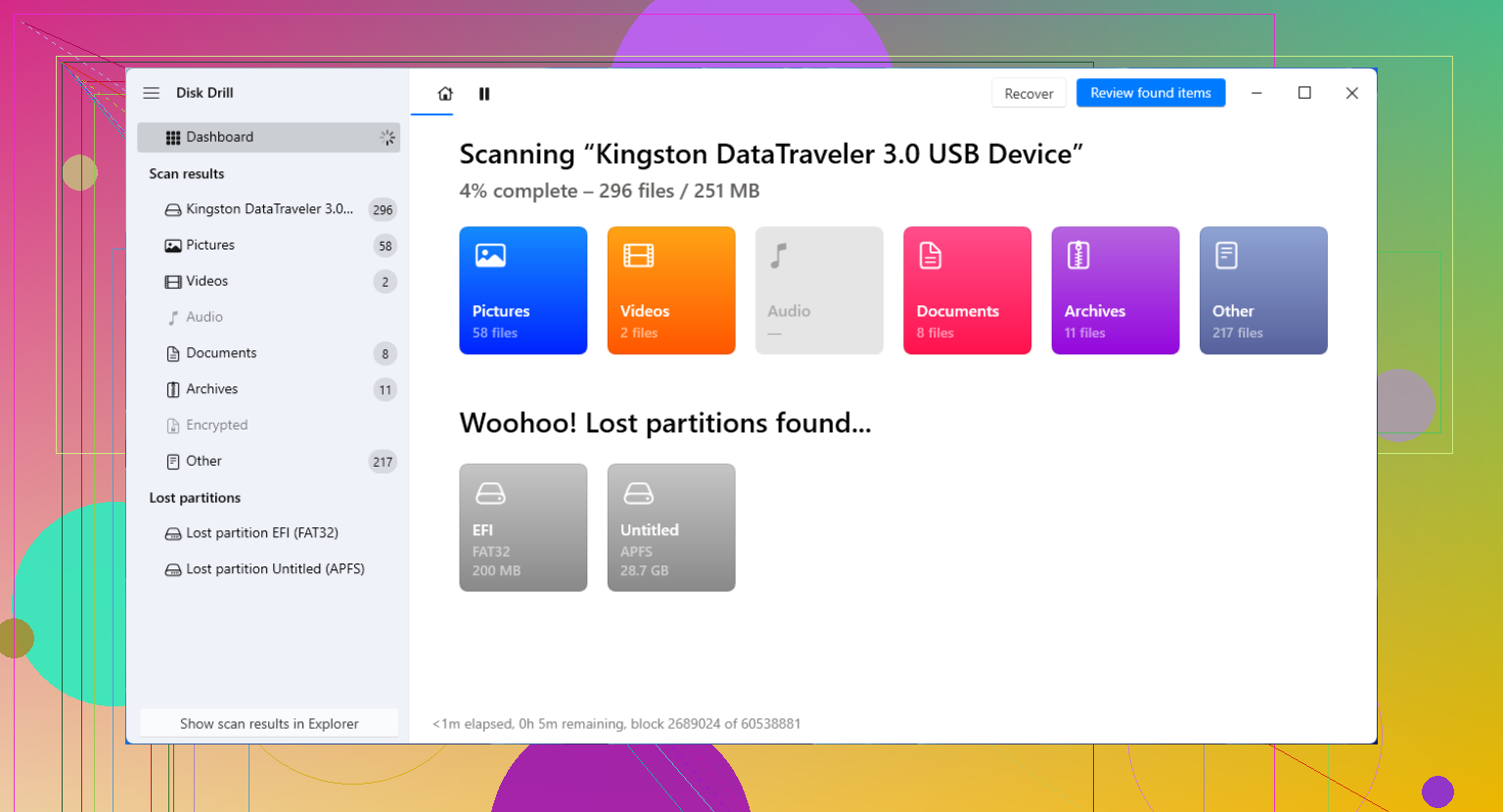
I also would not immediately run a long recovery scan on the USB itself. If the drive has bad sectors or is starting to fail, repeatedly reading it can make recovery harder. My usual approach is to open Disk Drill and make a byte-to-byte backup first. This creates an image containing every sector that can still be read, so most of the recovery work can be done without continuing to access the original device.
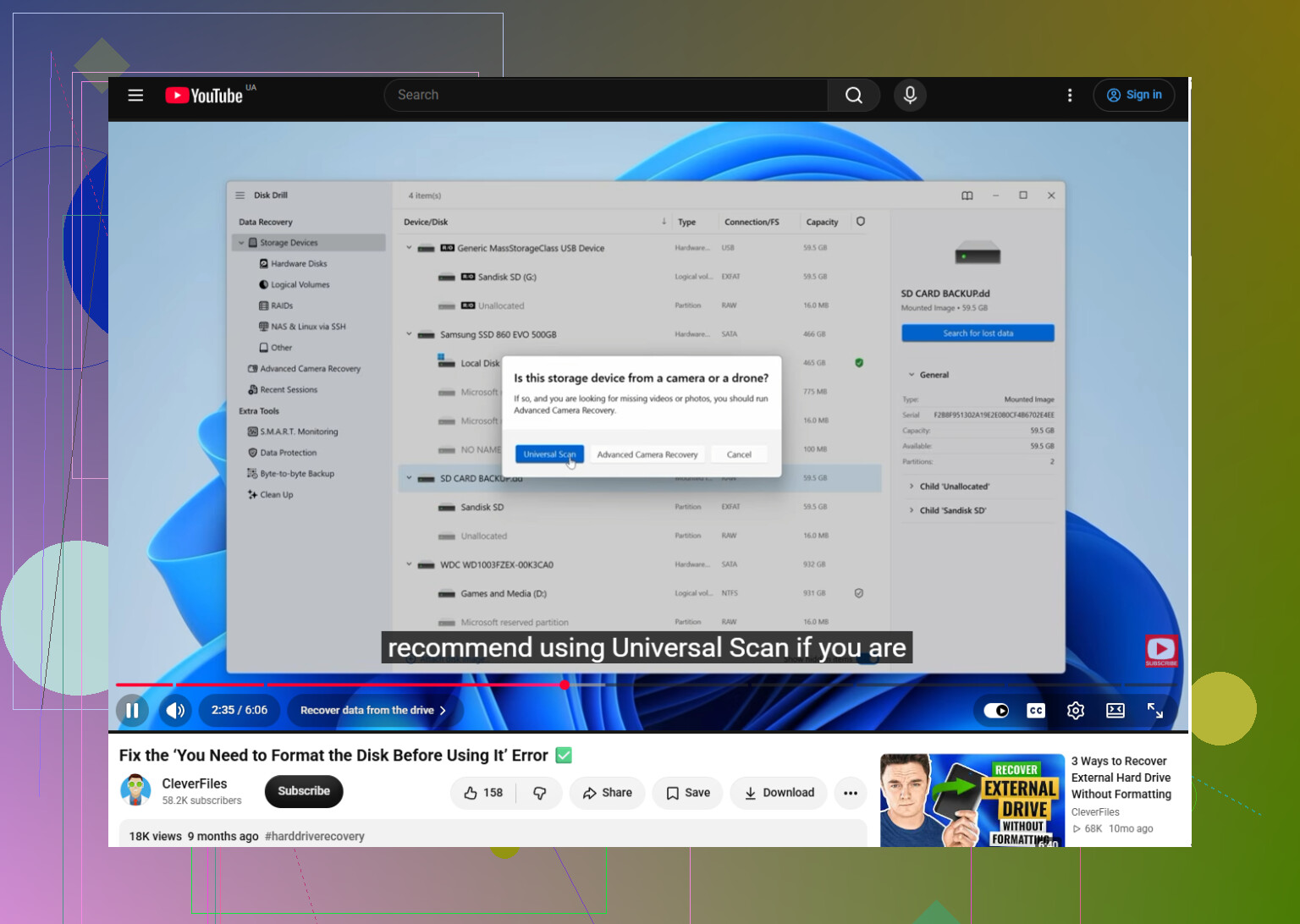
Once the image is ready, use Attach Disk Image in Disk Drill, select the image from the storage device list, and click Search for lost data. Let Universal Scan finish, even if files start appearing early.
This matters when a drive has become RAW or its file system is badly damaged. Disk Drill can use the remaining file system information where available, then fall back to identifying files by their signatures when Windows can no longer understand the partition.
You do not have to wait until the scan ends to inspect the results. Open Review found items and narrow things down using categories like Pictures, Video, Documents, and Archives. Preview several of the important files before recovering them. If a photo, document, or video previews correctly, that is generally a good indication that the file contains usable data rather than only a recovered name or incomplete fragment.
Select the files you want and click Recover, but save them to a different device. Your internal SSD or another external drive is fine, as long as it has enough free space. Do not write recovered files back to the problem USB because that could overwrite data that has not been recovered yet.
After everything important has been copied somewhere safe, you can format the USB. exFAT is usually a reasonable choice if you need it to work with both Windows and macOS. NTFS makes more sense if the drive will mainly be used with Windows.
The safest order is:
stop using the USB → create a disk image → scan the image → preview and recover files to another drive → format the USB
I have had better results treating this as a recovery job first and a repair job second. Formatting may fix the drive’s usability, but it should come after the files are safe.
This video also walks through the process, so you can follow the actions shown:
https://www.youtube.com/watch?v=dSrYeyo6T6o
26 Likes
The risky “fix” people often try here is chkdsk. It can repair minor file-system errors, but it writes changes to the USB, so on a badly corrupted drive it may turn recoverable folders into fragments. I would not run it while the only copy of the files is still on that stick.
Before paying for recovery software, try the cheap checks: connect it directly to a different USB port, avoid hubs, and test it on another computer. Then open Disk Management and see whether the drive shows its correct capacity. If the partition looks normal but only lacks a drive letter, assigning one may restore access without touching the data. If it shows as RAW, unallocated, zero bytes, or keeps disconnecting, stop experimenting.
At that point @hiddencursor’s image-first advice makes sense. Disk Drill is one option, but the important part is creating a sector image and recovering from that copy rather than “repairing” the original. If the USB cannot stay connected long enough to make an image, software fixes are unlikely to be safe, and valuable files may justify professional recovery.
A corrupted Windows-formatted USB and a healthy drive formatted for Linux or macOS can produce the same format prompt. If it was last used with a Mac, Linux PC, NAS, or another device, reconnect it there and copy the files off first. If it has always worked in Windows and now appears as RAW, then @0xserver6’s warning applies: avoid CHKDSK and create an image before attempting recovery.
If the USB was encrypted with BitLocker or used on a work computer, the format prompt may be hiding an encryption problem rather than ordinary file-system damage. Check its status with manage-bde -status in Command Prompt. If Windows identifies it as BitLocker, locate the recovery key before trying repairs. Do not initialize the disk or create a new volume in Disk Management.
For an unencrypted drive, I agree with the image-first advice, but I would try a read-only file listing before paying for anything. A tool such as TestDisk can sometimes detect the old partition and show the folders even when Windows calls the drive RAW. If it can list the files, copy them to another disk. Avoid using its “write partition” or boot-sector repair options until you have an image, since those modify the USB.
If the drive reports the wrong capacity, disconnects during reads, or becomes unusually hot, skip the repair attempts. That points more toward hardware or controller trouble, where repeated scans can waste the remaining time the device stays readable.
A successful format would not prove the stick is healthy. It can make the drive look fixed for a while, then fail again during the next large copy. There is no risk-free in-place repair when Windows cannot read the file system, so treat “fix” and “recover the files” as two separate jobs.
If the USB becomes readable after changing ports or computers, do not spend time opening folders and checking everything. Copy the irreplaceable files first, in small batches, starting with documents and photos that exist nowhere else. Even thumbnail view can make Explorer read a lot of files and cause an unstable drive to hang. A drive that reconnects briefly may not stay available long enough for one giant copy.
The image-first advice is sensible, but keep in mind that a sector image needs free space roughly equal to the USB’s full advertised capacity, not merely the amount of data stored on it. For a drive that disconnects or hits read errors, a resumable imaging tool such as ddrescue may handle the job better than a normal file copy. It is not beginner-friendly, though, and selecting the wrong source or destination can overwrite another disk. Disk Drill offers a simpler interface, but the important feature here is imaging with minimal writes to the original, not the brand.
There is another edge case worth checking. If this was a cheap high-capacity stick that failed only after you copied a certain amount onto it, it may have fake capacity. Some drives report 256 GB or 512 GB while containing far less actual flash storage. Once the real storage fills, newer data overwrites or corrupts earlier data, and formatting cannot recover files that were never stored correctly. Either way, do not initialize it, create a new volume, or run CHKDSK until you have copied or imaged whatever is still readable.
A drive that throws the format prompt once after a bad unplug is a completely different animal from one that keeps dropping out mid-copy, and the fixes people list above only apply cleanly to the first case. For the clean corruption case, @0xserver6 nailed the cheap check: swap ports, look in Disk Management, and if the partition is intact but missing a letter, assign one and you might be done in thirty seconds. What everyone glossed over is the boring first move that costs nothing, plug it into a phone or another laptop before touching any software, since half the time the drive reads fine somewhere else and the whole recovery panic evaporates. If it does stay readable, don’t browse it, just drag your must-have files off in one go. Imaging tools like Disk Drill or ddrescue are worth it only once you’ve confirmed the drive won’t cooperate normally, otherwise you’re spending disk space and time to solve a problem you don’t have yet.
Do not click Windows’ “Scan and fix” option either, since it can write changes to the file system just like CHKDSK. Copy or image the drive first, verify the recovered files open, and only then attempt repairs. If it shows 0 bytes or keeps disappearing, stop reconnecting it and consider professional recovery.
A hidden snag with the image-first approach is the destination drive: if it uses FAT32, a USB image larger than 4 GB cannot be saved as one file, even when plenty of free space remains. Use an NTFS or exFAT destination with space for the USB’s full capacity. There is no reliably safe in-place repair for a RAW or corrupted file system, so cancel formatting, avoid CHKDSK and “Scan and fix,” image the stick, then recover files from the image before reformatting the original.
Try an Android phone or tablet with a USB OTG adapter. Connect the USB, open the Files app, then copy your key folders to the phone, an SD card, or cloud storage. Android sometimes reads exFAT or FAT32 drives Windows rejects. Copy small folders first. If the phone asks to format or erase the drive, cancel it. Dont move, rename, or delete files on the USB. After checking your copied files, replace the stick rather than trusting it again.