I’m getting com.apple.diskmanagement.disenter error 49218 when I try to mount or access an external drive on my Mac. The disk shows up, but it will not open, and I’m worried about losing files. I need help figuring out what causes this error and the safest way to fix it.
I ran into the same 'disenter error' mess on macOS, and it looked less dramatic than it was. The Mac saw the drive. The file system side refused to play along. So the hardware showed up, but DiskManagement kept the volume from mounting.
What bit me most often was fsck getting stuck in the background. If you unplug a drive without ejecting it first, macOS tends to queue a file system check the next time you connect it. On bigger ExFAT drives, and on some APFS volumes too, I saw fsck sit there forever. While it hangs, the disk stays locked out.
The first thing I did was kill fsck manually. Open Terminal and run:
sudo pkill -f fsck
You’ll need your admin password. After I did this, the drive sometimes mounted right away. A couple times it came back read-only, which was fine by me, I only wanted the files off it.
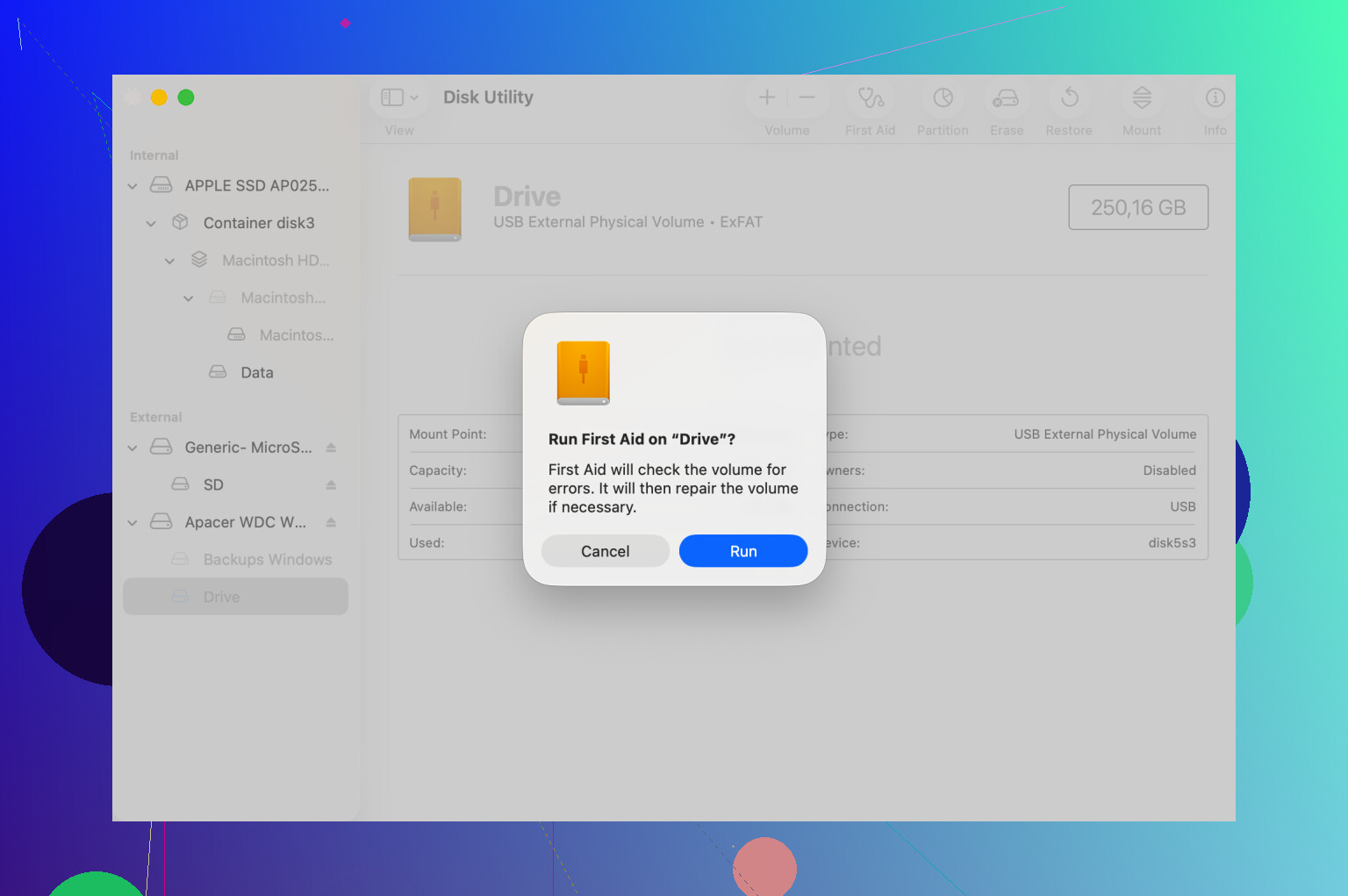
Disk Utility matters too, but only if you hit the right layers. Don’t run First Aid only on the grayed-out volume and call it done. In Disk Utility, open View, pick Show All Devices, then work top to bottom. I mean the physical disk first, then the container, then the volume. If First Aid fails once, I’d still try again. I’ve seen the second or third pass clear stuff like B-tree damage or partition map weirdness.
If First Aid throws exit code 8, or says the volume can’t be repaired, I’d stop there. I pushed my luck once and made the drive worse. Repeated mount attempts on a damaged file system are a bad bet if your data matters.
At that point I switched to recovery. Disk Drill was one of the few tools that gave me something useful to work with. On one dead external, macOS wouldn’t mount anything, but the scan still pulled a readable file tree. In some cases it rebuilds enough structure to preview files, and in rougher cases it scans raw sectors so you can copy data to a healthy disk before wiping the broken one.
One more thing, newer macOS builds seem to have a flaky DiskManagement hiccup. I’ve had a drive mount after logging out of my user account and signing back in. Safe Mode did it once too. It feels dumb, but I’d try both before reformatting.
19 Likes
49218 often points to a mount handshake failure, not instant drive death. I’d avoid repeated mount clicks. Each retry writes logs and sometimes nudges a weak file system the wrong way.
A few things I’d do, different from what @mikeappsreviewer covered:
-
Check the disk from Terminal.
Run:
diskutil list
Find the external disk identifier, like disk4s1, then run:
diskutil info /dev/disk4s1
Look for “File System Personality” and “Read-Only Media”. If macOS reports “Unknown” or blank file system info, the issue is often corruption or a bad bridge board in the enclosure. -
Try a manual mount.
diskutil mountDisk /dev/disk4
or for one volume:
diskutil mount /dev/disk4s1
If you get the same disenter error in Terminal, it rules out Finder being dumb, which happens more than it should. -
Test the enclosure, not only the drive.
This gets missed a lot. USB SATA bridge chips fail more often than the disk itself. Swap cable, port, and if it is a 2.5 or 3.5 SATA drive in a USB case, remove it and attach it with another adapter. I’ve seen “dead” drives mount instantly after changing the enclosure. Annoying, but true. -
Check if the format is unsupported or flaky on your macOS build.
Old NTFS helper apps, stale Paragon/Tuxera drivers, and some security tools block mounts. Boot once with third-party disk tools removed or disabled. I disagree a bit with killing random background tasks first. If a kernel extension or file system driver is the cause, fsck is not the core problem. -
If the data matters, clone first.
If the drive clicks, disconnects, or gets hot, stop testing. Make a byte-level copy with ddrescue from another Mac or Linux box. Work from the clone, not the original.
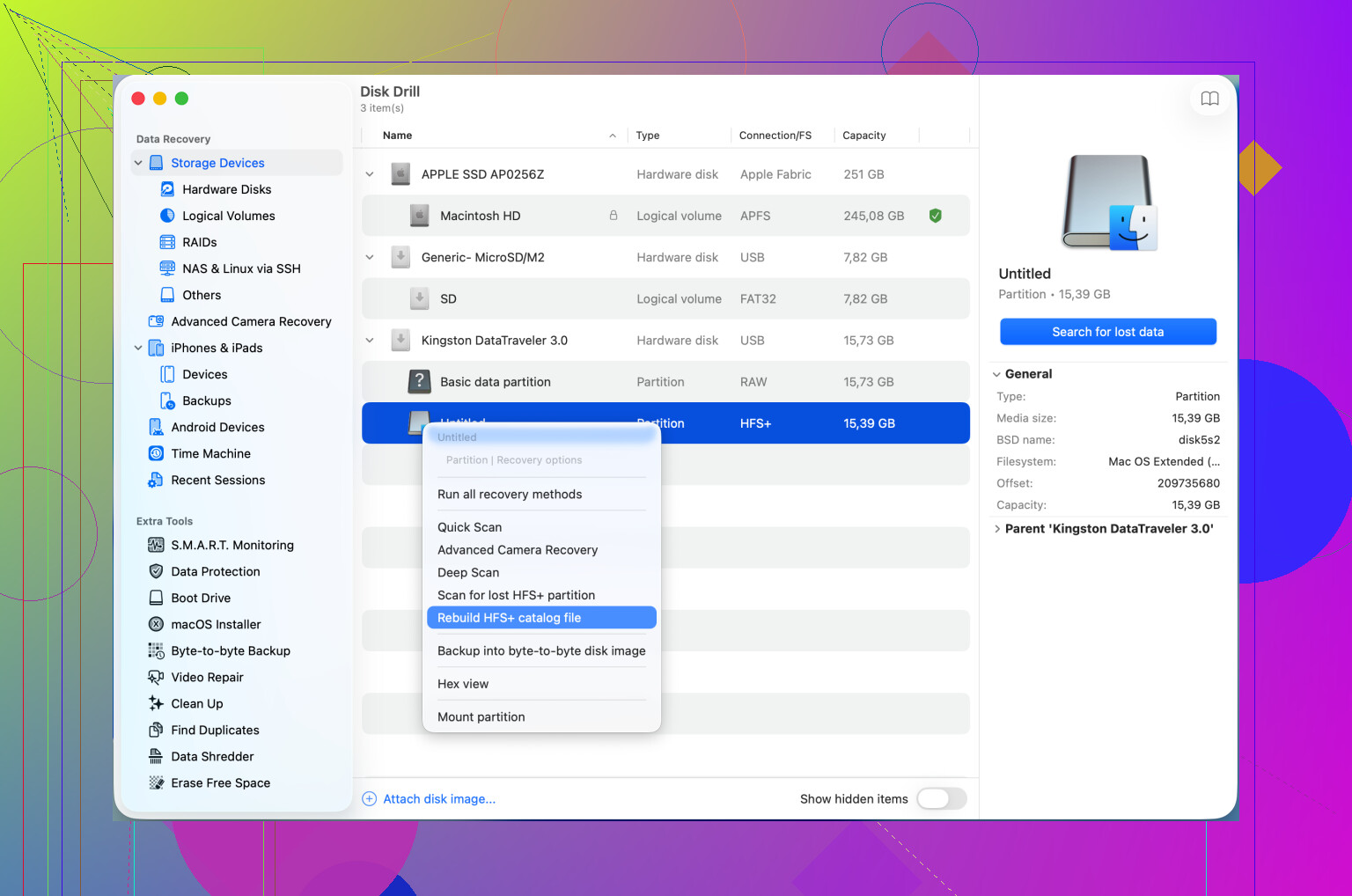
If macOS still won’t mount it, Disk Drill is worth trying for recovery. It’s useful when the drive appears in Disk Utility but won’t open in Finder, and it often previews files before you format anything. For HFS issues tied to this error, this guide is relevant: recover and repair an HFS catalog to resolve disenter errors
One more small thing. If the drive was used on Windows, fast startup and unsafe removal leave ExFAT in a messy state. Plugging it back into a Windows PC and doing a full chkdsk sometimes fixes what macOS refuses to mount. It’s a weird fix, but I’ve seen it work twice.
49218 is one of those stupidly vague Mac errors where the disk is visible, but macOS refuses to finish the mount. I mostly agree with @mikeappsreviewer and @boswandelaar, but I’d add a couple things before you keep poking at it.
First, check Console.app right after a failed mount attempt. Filter for diskmanagementd, kernel, and I/O. If you see repeated I/O errors, timeouts, or “media not present” type messages, that points more to failing hardware than file system damage. That matters because software fixes won’t do much if the drive is choking at the hardware layer.
Second, try mounting it on another Mac user account or even from macOS Recovery. I know Safe Mode got mentioned, but Recovery is a better test sometimes because it strips away login items, Finder junk, and third-party background garbage. If it mounts there, your main install is the problem, not neccearily the disk.
Third, if the drive is an external HDD, listen to it. Seriously. Repeating spin-up/spin-down, faint clicking, or disappearing from System Information are bad signs. At that point, stop First Aid loops. People love to keep retrying because “maybe this time,” and then the disk gets worse. Been there, did the dumb thing.
Also, one small disagreement: I would not keep rerunning repairs too many times if the data is important. One clean attempt, maybe two max. After that, switch to recovery mode in the generic sense, not Apple’s Recovery app. If you need software for an unmountable drive, this is a decent place to start: best data recovery software for an unmountable external drive.
If the drive still shows capacity correctly and stays connected, Disk Drill is worth trying before formatting. It’s one of the more reliable Mac options for recovering files from external drives that show up but won’t mount. I’d use that before doing anything destructive.
Last thing, if this is just a USB flash drive or SD card, try a dumb simple test: plug it in through a powered hub or different card reader. Sounds silly, but low power and flaky readers cause weird mount fails all the time. Mac gets real wierd about it.
One angle I don’t see stressed enough by @boswandelaar, @shizuka, and @mikeappsreviewer: check whether macOS is refusing the mount because of ownership, encryption, or a stale mount point, not just corruption.
Open Terminal and run:
mount
ls /Volumes
diskutil apfs list
If your drive name is already listed in /Volumes but the disk is not actually mounted, macOS may be tripping over an old mount folder. Rename or remove the empty leftover folder in /Volumes and try again. That weirdly fixes some disenter cases.
If the disk is APFS or was once a Time Machine disk, also check whether it is encrypted but not prompting properly. In Disk Utility, select the volume and see if there’s an unlock option. Terminal can also show more than Finder does.
I slightly disagree with killing fsck right away unless you know it is hung. If the file system check is actually making progress, stopping it can leave things messier.
Another useful test:
log show --last 10m --predicate 'process == 'diskmanagementd'' --info
That can reveal whether the failure is permission-related, encrypted-volume related, or a plain mount denial.
If the files matter, do not run random repair tools in circles. Recover first, repair later. Disk Drill is decent for that.
Pros of Disk Drill:
- good at finding files from drives that appear but won’t mount
- Mac-friendly interface
- preview support before recovery
Cons:
- deep scans can take ages
- recovery quality depends on file system damage
- not magic if the hardware is actively failing
If it still refuses to mount but appears stable, I’d recover what I can, then erase and repartition the drive completely.